
Sample Data Handling Using PII Tags
In Collate, sensitive information is protected through automatic masking of sample data when PII (Personally Identifiable Information) tags are applied.How It Works
-
If a PII tag is applied to a specific column, Collate masks that column’s sample data and displays it as
********in the UI.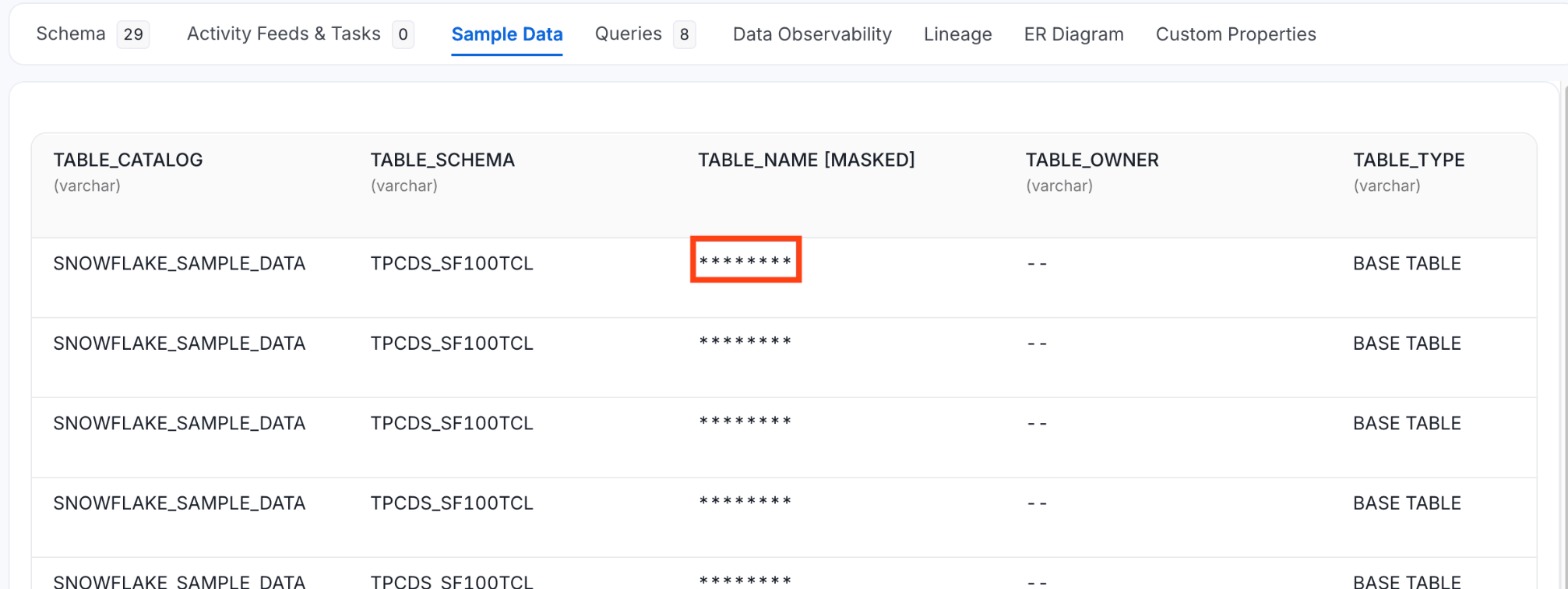
-
If a PII tag is applied at the table level, Collate automatically masks sample data for all columns in that table.
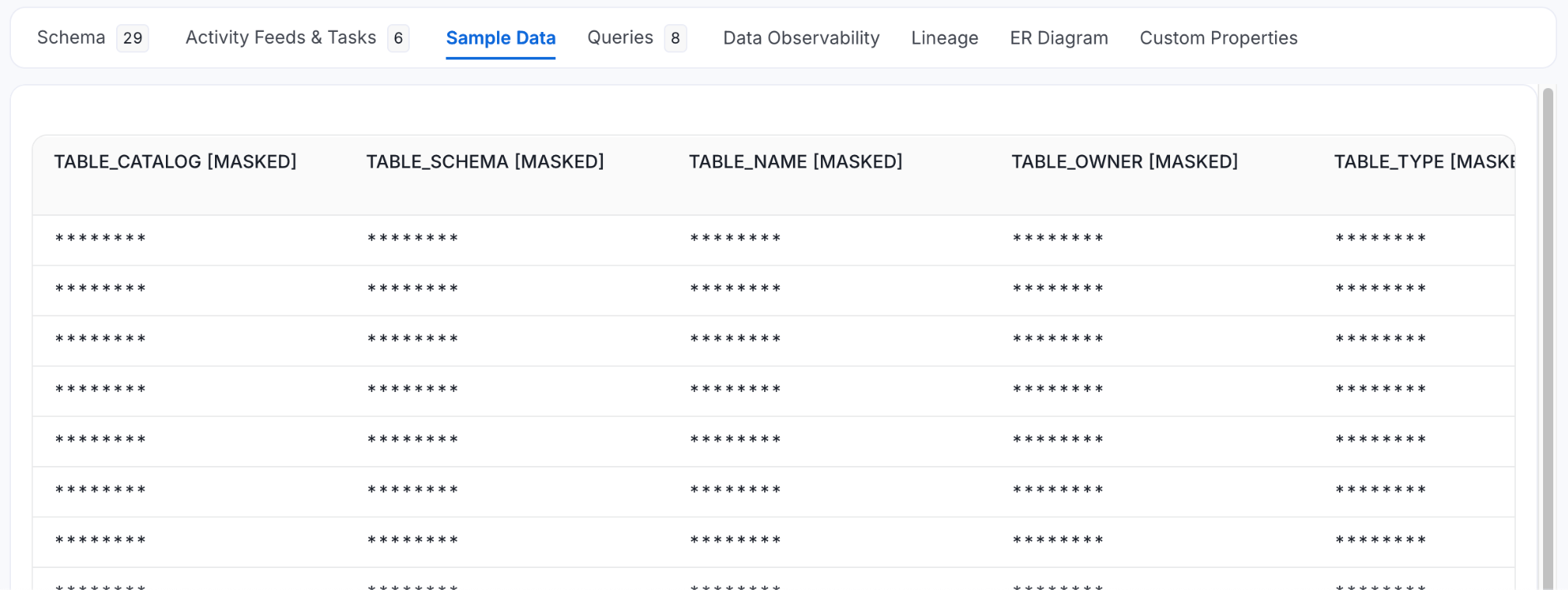
Example
When the tag is applied at the table level, the result would be:
How to Apply PII Tags
- Navigate to the column or table in the Collate UI.
- In the Tags column, click + Add next to the column or table you want to apply PII tag.
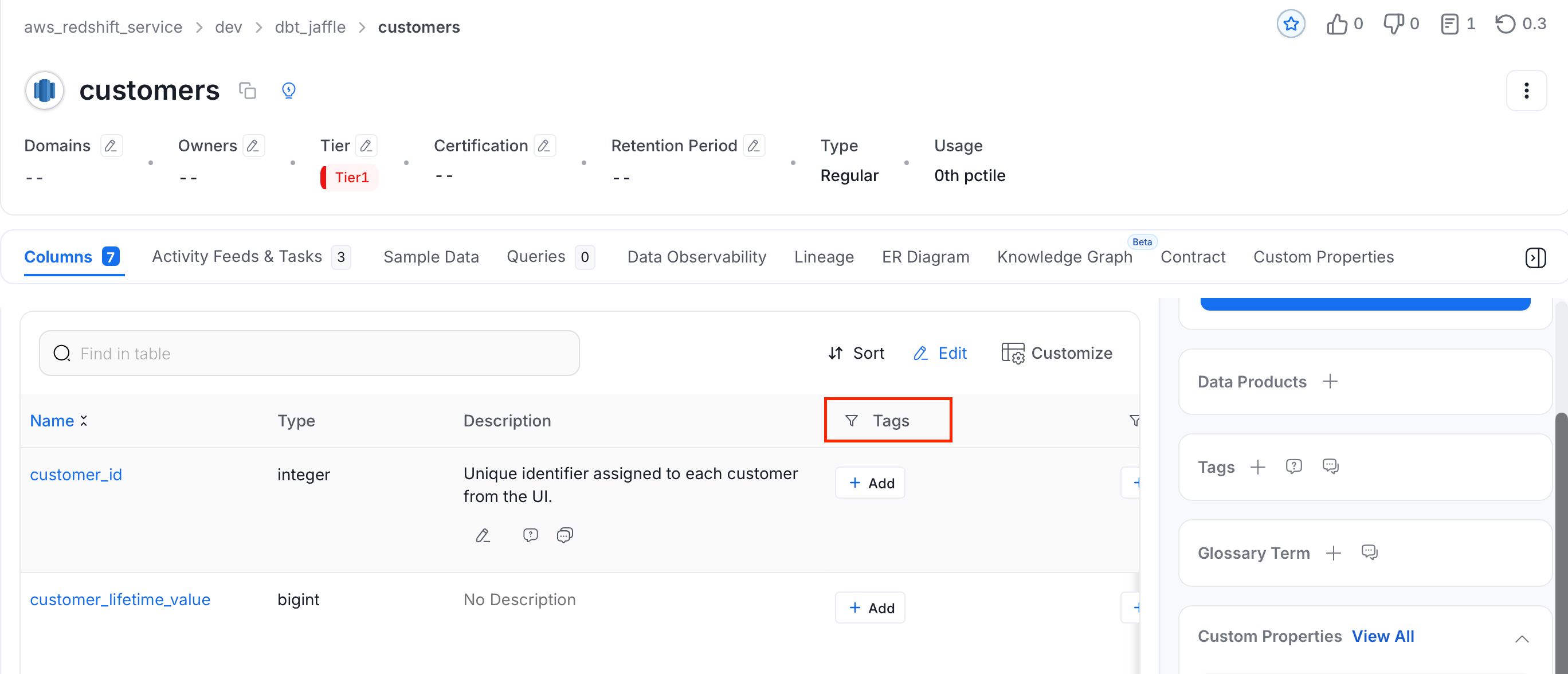
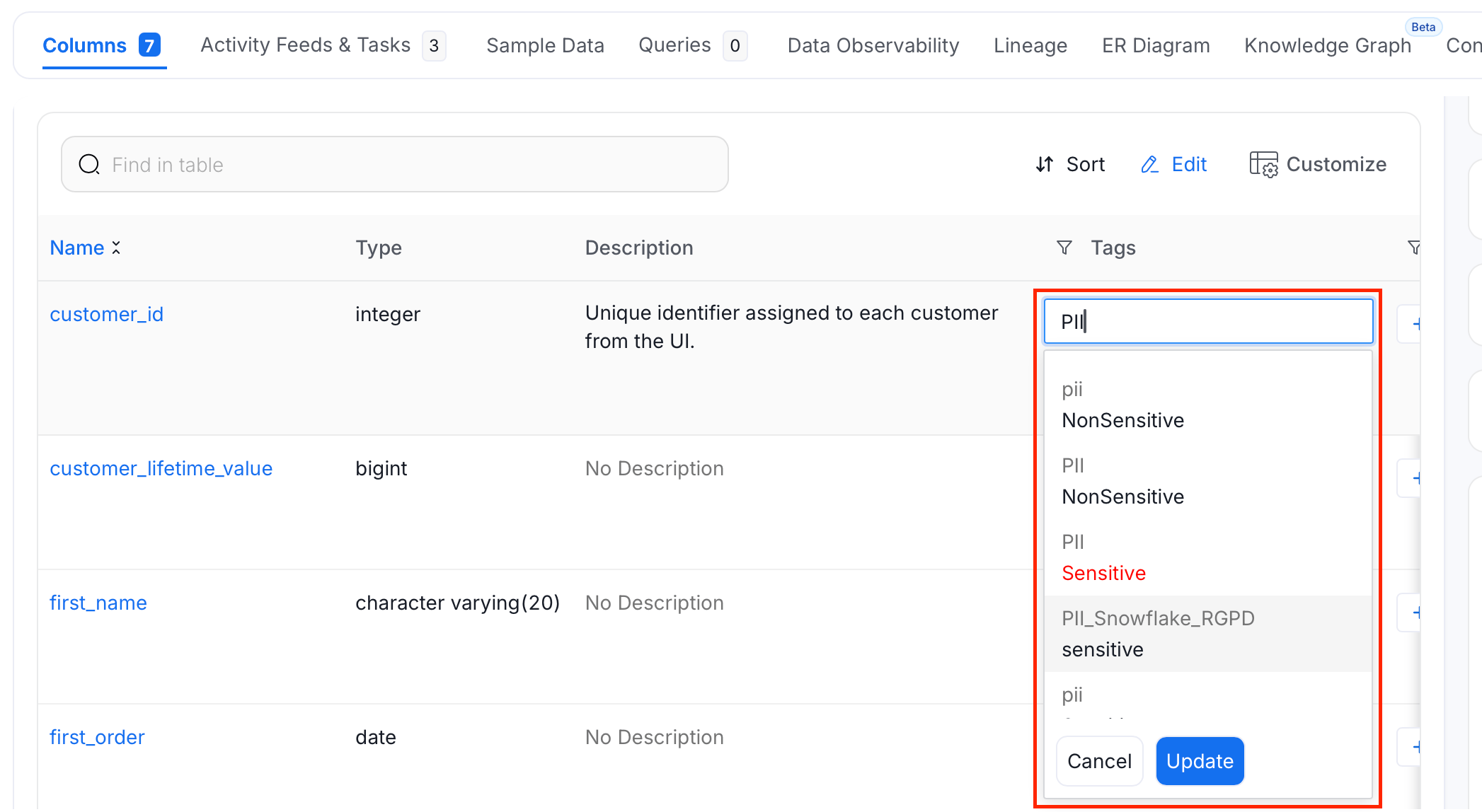
- Search and select PII tags, and click Update.
Access Control
Two separate controls protect sample data:- Permission to view sample data: Sample data has its own
ViewSampleDataoperation, andViewAllincludes it. A user without it still sees the Sample Data tab, but the tab shows a permission-denied message. You can’t hide the tab for a role. - PII masking: A column tagged
PII.Sensitiveis masked unless the user is an admin, a bot, or an owner of the table. HavingViewSampleDataalone doesn’t unmask the values.
For sensitive environments:
- Tag sensitive columns, or the whole table, with
PII.Sensitive. - Restrict who can view sample data. The default
OrganizationPolicy-ViewAll-Rulegives every userViewAll, which includesViewSampleData. Add aDenyrule forViewSampleDatato the roles that shouldn’t see it, as in Use Case 11, or edit that rule. - Make sure only the people who need to see the real values own sensitive tables.