
Billing and Usage
Every AI-powered feature in Collate (Collate AI Chat, AI Agents, Dynamic Agents, and AI Automations) draws from a shared pool of AI credits. The Billing & Usage page gives administrators a complete view of that pool: How much has been used, who’s using it, and what to do when it runs low.Access Billing & Usage
To access the Billing & Usage page, click the Profile icon and navigate to Settings > Billing.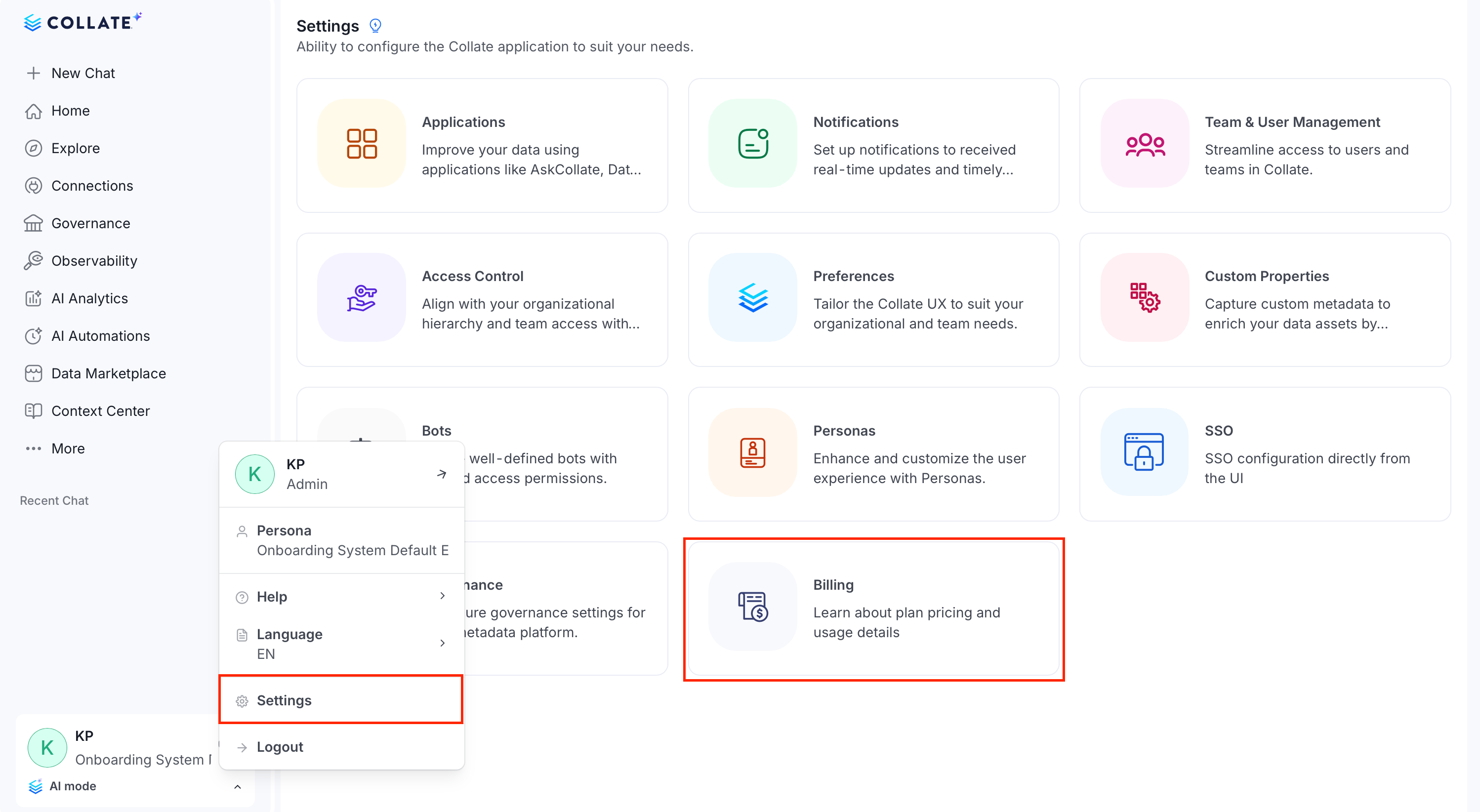
How Credits Are Calculated
Credits measure the real cost of an AI call, not just the number of tokens it used. Collate weights each token type by how much it actually costs:
1 credit covers a request’s input, cached, and output tokens, weighted by the model that served it. A typical Collate AI question costs ~0.5–2.0 credits; multi-step agent tasks (search, SQL analytics, edits) use more.
What Consumes Credits
AI credits are consumed by:- Collate AI Chat, from any channel (web, Slack, Teams).
- The natural-language search bar.
- AI Agents and Dynamic Agents.
- Embeddings for vector search and re-indexing, which use a small amount of credits.
- AI Automations. These currently draw from the same shared pool as everything else. There’s no separate budget set aside for automations.
Permissions
Billing and AI Credits is visible only to workspace administrators. There’s currently no personal “my usage” view for other users. The only thing they see is the low-credit or exhausted warning banner in Collate AI Chat.Billing and Usage Overview
To open Billing and Usage, click the Profile icon and navigate to Settings > Billing. The Overview page is the landing page for Billing, giving you one snapshot of your plan and usage before you drill into a specific area: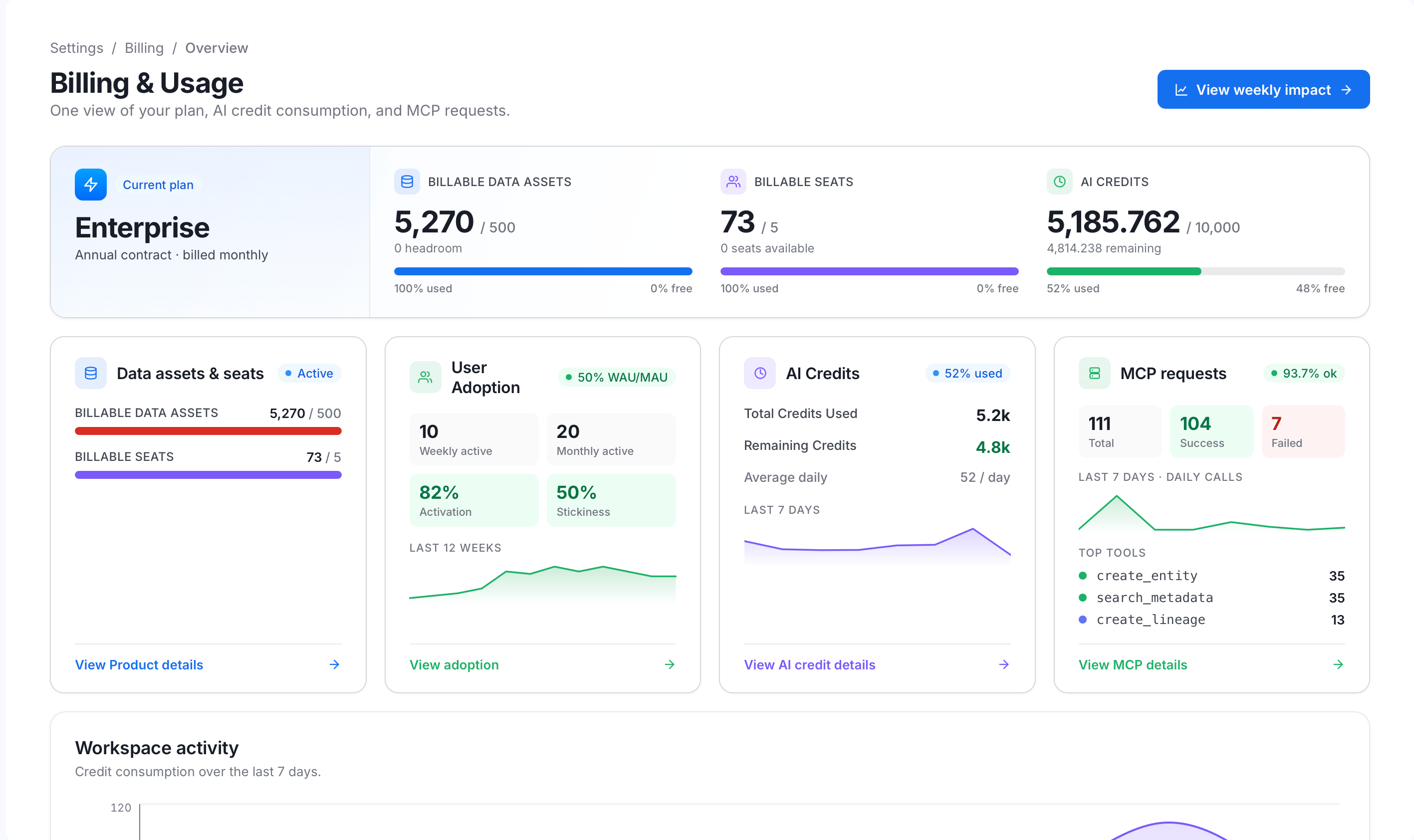
- A plan card showing your plan tier and billing cycle, with progress bars for how much of your data asset, seat, and credit limits you’ve used.
- Four section cards, each with a headline metric and a link to that area’s full page. All except Data Assets & Seats also show a mini trend chart:
- Data Assets & Seats: Your billable data assets and billable seats, each shown against your plan limit. For more information, see Data Assets and Seats.
- User Adoption: Weekly active users, monthly active users, activation rate, and stickiness, with a 12-week trend. For more information, see User Adoption.
- AI Credits: Total credits used, remaining credits, and average daily usage, with a 7-day trend. For more information, see AI Credits.
- MCP Requests: Total, successful, and failed MCP calls, with a 7-day trend and your most-used tools. For more information, see MCP Requests.
- A Workspace Activity chart. See Workspace Activity below.
- A View weekly impact button, linking to the Weekly Impact digest.
Workspace Activity
A full-width Workspace Activity chart plots credit consumption over the last 7 days as a daily trend line. Unlike the section cards above it, this chart isn’t a link to another page. It’s a quick visual read on whether usage is trending up or down day to day, without leaving the Overview page.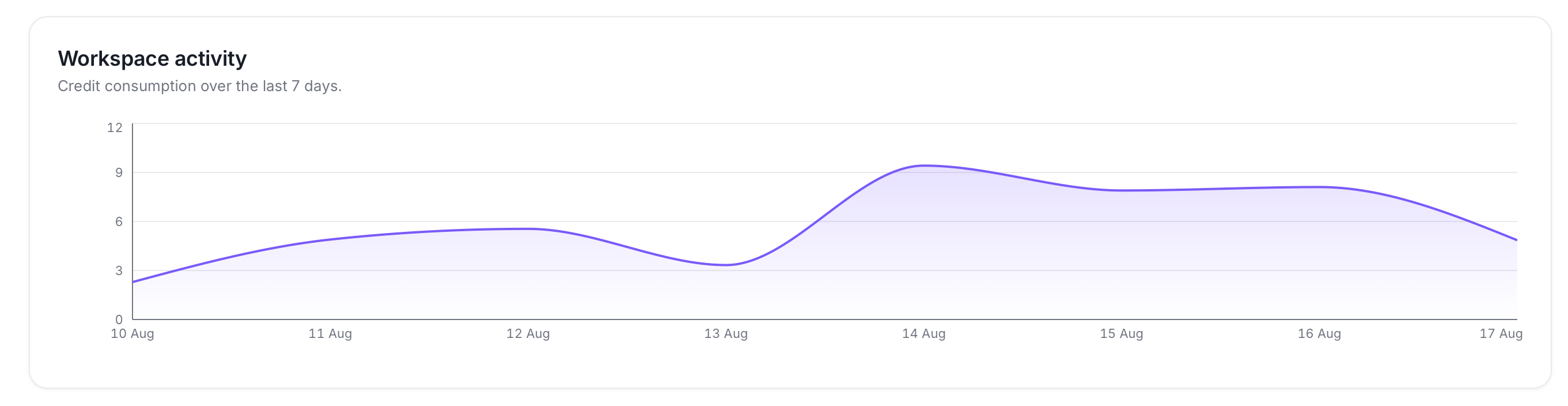
Plan and Credit Pool
A few things to know about your plan and credit pool:- Your plan (Free, Starter, Premium, Enterprise, or POV) and total credit pool are set for the whole workspace, not per team or per user.
- The credit pool refreshes once a year, on the Renews On date shown on the AI Credits page.
- There’s no self-service way to change your plan or credit pool from within the product. Contact Collate to make changes.
Limits and Warnings
As your organization’s credit pool runs low, Collate AI Chat shows an increasingly urgent banner:- Low (fewer than 10 credits remaining): “You’re running low on Collate AI credits. Long conversations might not finish. Contact support to request more credits.”
- Exhausted (fewer than 2 credits remaining): “You’ve exceeded your Collate AI limits. Some features might be unavailable. Contact Support for further assistance.”
- Status unavailable: If Collate can’t check the remaining balance, it warns that runs might fail if the pool has actually run out.
Blocked Runs
Once the pool is exhausted, Collate blocks new AI runs rather than letting them fail partway through. A run needs at least 2 credits remaining in the pool to start at all. This applies to every credit-consuming feature: Chat, search, agents, and automations alike. Credit checks refresh every few minutes rather than in real time, so a burst of concurrent AI calls right at the limit could briefly overshoot before being blocked. On the home dashboard, the Action Required and Recommended Improvements widgets show a dedicated out-of-credits message with a View Usage link back to this page, instead of a generic error. The Platform Health Summary widget uses an inline out-of-credits placeholder without that link.Troubleshooting
If a user reports they can’t run an AI feature, work through this checklist:- Check the pool: Open the AI Credits page gauge. Is the workspace’s pool near or at zero?
- Check the user: Look them up in the per-user credit usage table. Are they a particularly heavy consumer?
- Check the breakdown: Expand their row to see which agent or channel is consuming their share.
- Check the conversation: Use the Conversations page to find the specific interaction and its cost. A conversation with no recorded cost may predate per-conversation attribution, or the spend may have come from the search bar, which isn’t tied to a conversation.
- Check headroom: Even if the pool isn’t fully exhausted, a run needs at least 2 credits remaining to start. Confirm the workspace has that much headroom.
Explore the Billing and Usage Pages
Each area of Billing and Usage has its own page:Data Assets and Seats
Billable data assets and seats, with breakdowns by entity type, role, team, and source.
User Adoption
Active users, activation, stickiness, feature adoption, and the Users table.
AI Credits
The credit pool, usage over time and by agent, channel, app, and user, plus the Conversations page.
MCP Requests
Requests from AI assistants and IDEs to your Collate MCP server.
Weekly Impact
A weekly digest of growth, requests, conversations, and who is driving activity.