> ## Documentation Index
> Fetch the complete documentation index at: https://docs.getcollate.io/llms.txt
> Use this file to discover all available pages before exploring further.
# Superset Connector | Collate Dashboard Integration
> Learn how to connect Apache Superset dashboards to Collate with our comprehensive connector guide. Setup instructions, configuration, and metadata integration.
export const MetadataIngestionUi = ({connector, selectServicePath, addNewServicePath, serviceConnectionPath}) => {
return <>
To ingest metadata from your sources, you need to create a service connection.
The service connects your source system with Collate. Once you create
a service, you can use it to configure your ingestion workflows.
To create a service connection and ingest your metadata, follow the steps below:
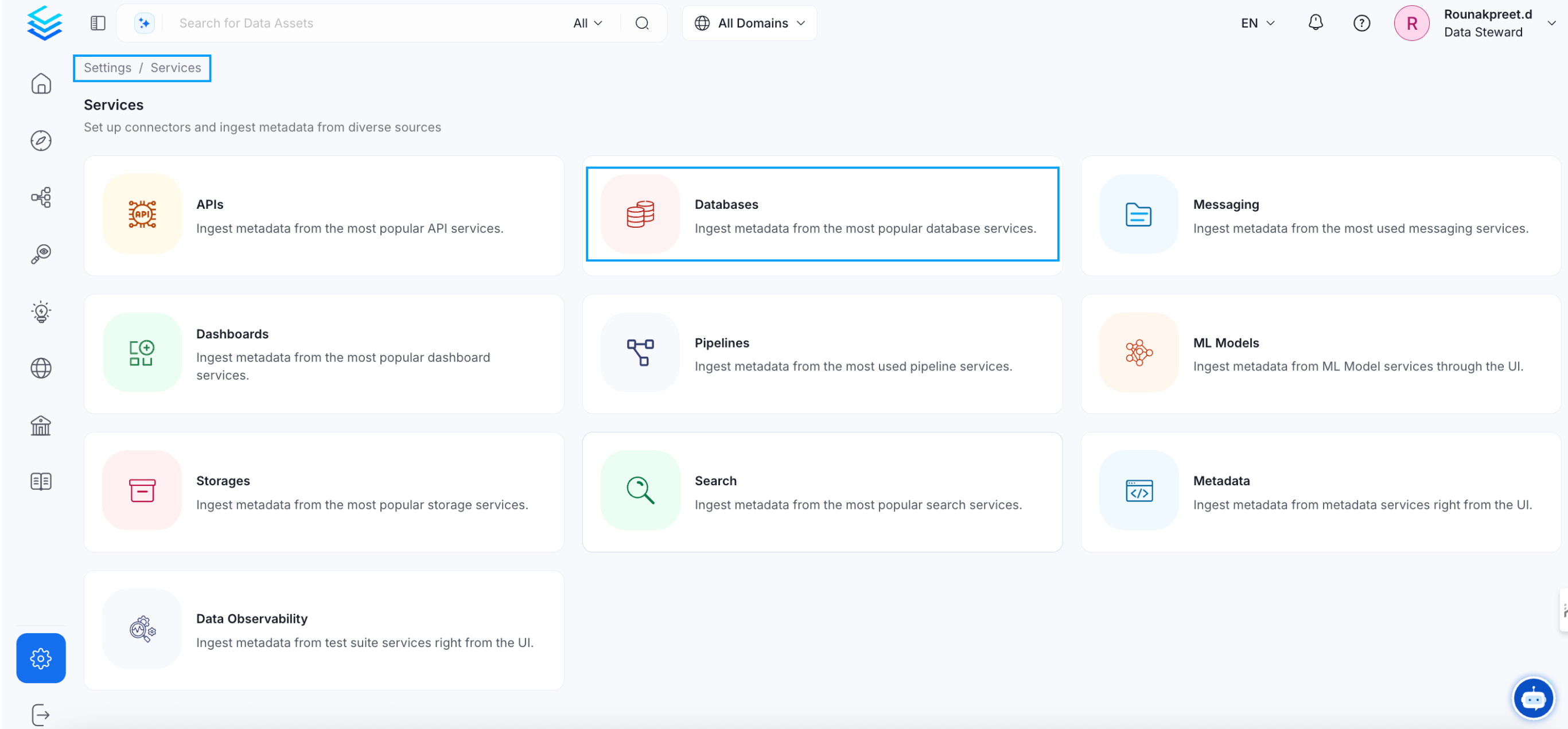
On the left navigation bar, click Settings.
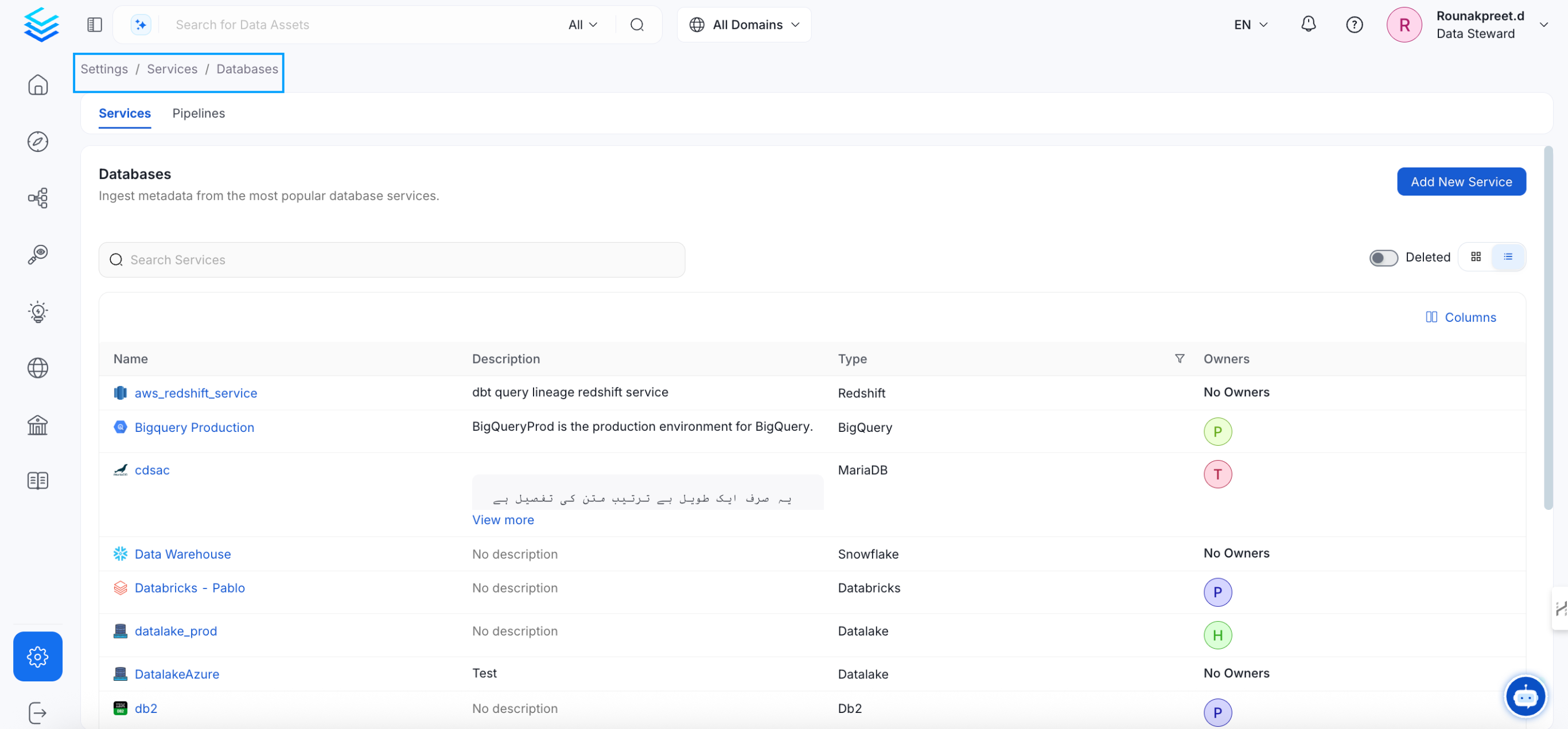
On the next page, click Services, and then select the service.
To add a new service connection, click Add New Service.
Select {connector} as the service type and click Next.
{selectServicePath && }
Enter a unique, descriptive Service Name and Description.
Service Name: Collate identifies services by their service name. Enter a name that distinguishes this deployment from other services, including other {connector} services you are ingesting metadata from.
The service name cannot be changed after it is set.
{addNewServicePath && }
Set up the connection settings required for {connector}.
Configure the following connection options to set up the service and start ingesting metadata from your sources. The right-hand panel displays help documentation for the selected connection type in the product UI
{serviceConnectionPath && }
;
};
export const ConnectorDetailsHeader = ({name, icon, stage, availableFeatures, unavailableFeatures = [], availableFeaturesCollate = []}) => {
const showSubHeading = availableFeatures?.length > 0 || unavailableFeatures?.length > 0 || availableFeaturesCollate?.length > 0;
const totalAvailableFeatures = [...availableFeatures || [], ...availableFeaturesCollate || []];
return
{icon &&
}
{name}
{stage}
{showSubHeading &&
Feature List
{totalAvailableFeatures.map(feature =>
✓ {feature}
)}
{unavailableFeatures.map(feature =>
✕ {feature}
)}
}
;
};
In this section, we provide guides and references to use the Superset connector.
Configure and schedule Superset metadata and profiler workflows from the Collate UI:
* [Requirements](#requirements)
* [Metadata Ingestion](#metadata-ingestion)
* [Enable Security](#securing-superset-connection-with-ssl-in-openmetadata)
* [Lineage](#lineage)
* [Troubleshooting](/connectors/dashboard/superset/troubleshooting)
## Requirements
The ingestion also works with Superset 2.0.0 🎉
**API Connection**: To extract metadata from Superset via API, user must have at least `can read on Chart` & `can read on Dashboard` permissions.
**Database Connection**: To extract metadata from Superset via MySQL or Postgres database, database user must have at least `SELECT` privilege on `dashboards` & `slices` tables within superset schema.
## Metadata Ingestion
## Connection Details
* **Host and Port**: The `Host and Post` parameter is common for all three modes of authentication which specifies the host and port of the Superset instance. This should be specified as a string in the format `http://hostname:port` or `https://hostname:port`. For example, you might set the hostPort parameter to `https://org.superset.com:8088`.
* **Superset Connection**: Add the connection details to fetch metadata from Superset either through APIs or Database.
##### For Superset API Connection
Superset API connection is the default mode of authentication where we fetch the metadata using [Superset APIs](https://superset.apache.org/docs/api/).
Superset only supports basic or ldap authentication through APIs so if you have SSO enabled on your Superset instance then this mode of authentication will not work for you and you can opt for MySQL or Postgres Connection to fetch metadata directly from the database in the backend of Superset.
* **Username**: Username to connect to Superset, for ex. `user@organization.com`. This user should have access to relevant dashboards and charts in Superset to fetch the metadata.
* **Password**: Password of the user account to connect with Superset.
* **Provider**: Choose between `db`(default) or `ldap` mode of Authentication provider for the Superset service. This parameter is used internally to connect to Superset's REST API.
* **Verify SSL**:
Client SSL verification. Make sure to configure the SSLConfig if enabled.
Possible values:
* `validate`: Validate the certificate using the public certificate (recommended).
* `ignore`: Ignore the certification validation (not recommended for production).
* `no-ssl`: SSL validation is not needed.
* **SSL Config**: Client SSL configuration in case we are connection to a host with SSL enabled.
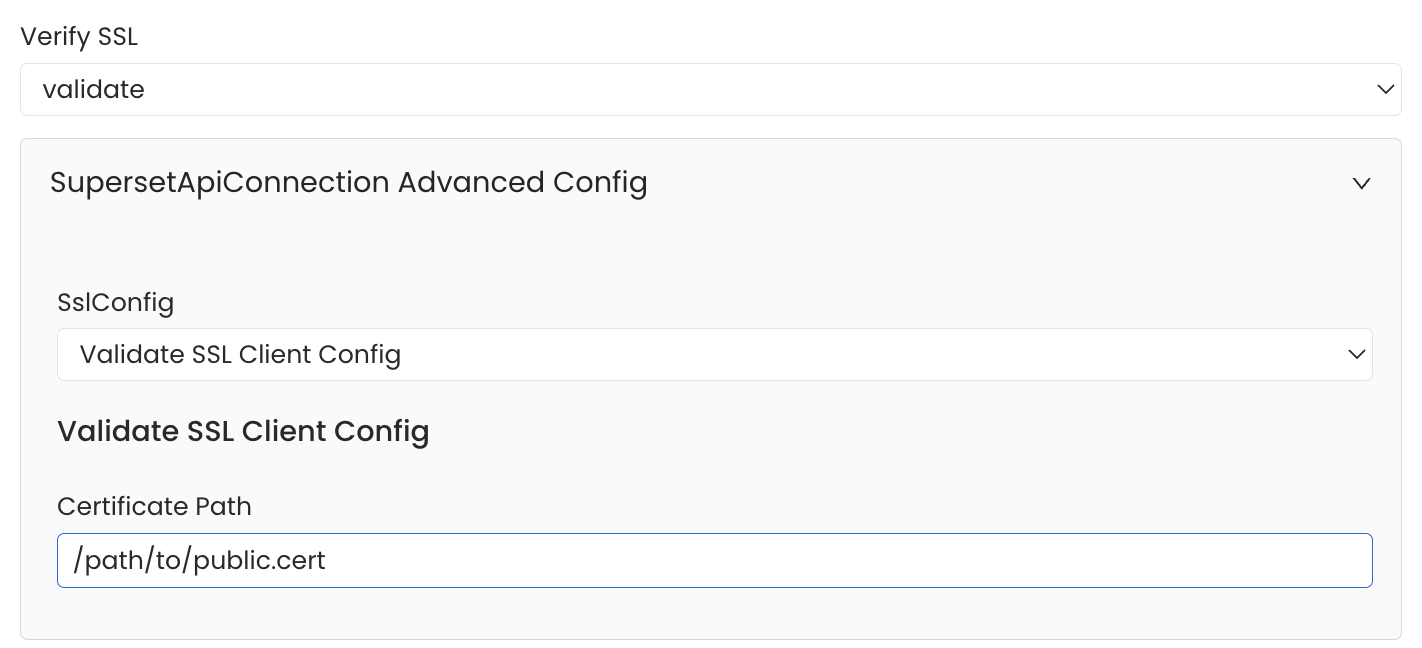
* **Certificate Path**: CA certificate path in the instance where the ingestion run. E.g., `/path/to/public.cert`. Will be used if Verify SSL is set to `validate`.
For MySQL Connection
You can use Mysql Connection when you have SSO enabled and your Superset is backed by Mysql database.
* **Username**: Specify the User to connect to MySQL. It should have enough privileges to read all the metadata. Make sure the user has select privileges on `dashboards`, `tables` & `slices` tables of superset schema.
* **Password**: Password to connect to MySQL.
* **Host and Port**: Enter the fully qualified hostname and port number for your MySQL deployment in the Host and Port field.
* **databaseSchema**: Enter the database schema which is associated with the Superset instance.
* **caCertificate**: Provide the path to ssl ca file.
* **sslCertificate**: Provide the path to ssl client certificate file (ssl\_cert).
* **sslKey**: Provide the path to ssl client certificate file (ssl\_key).
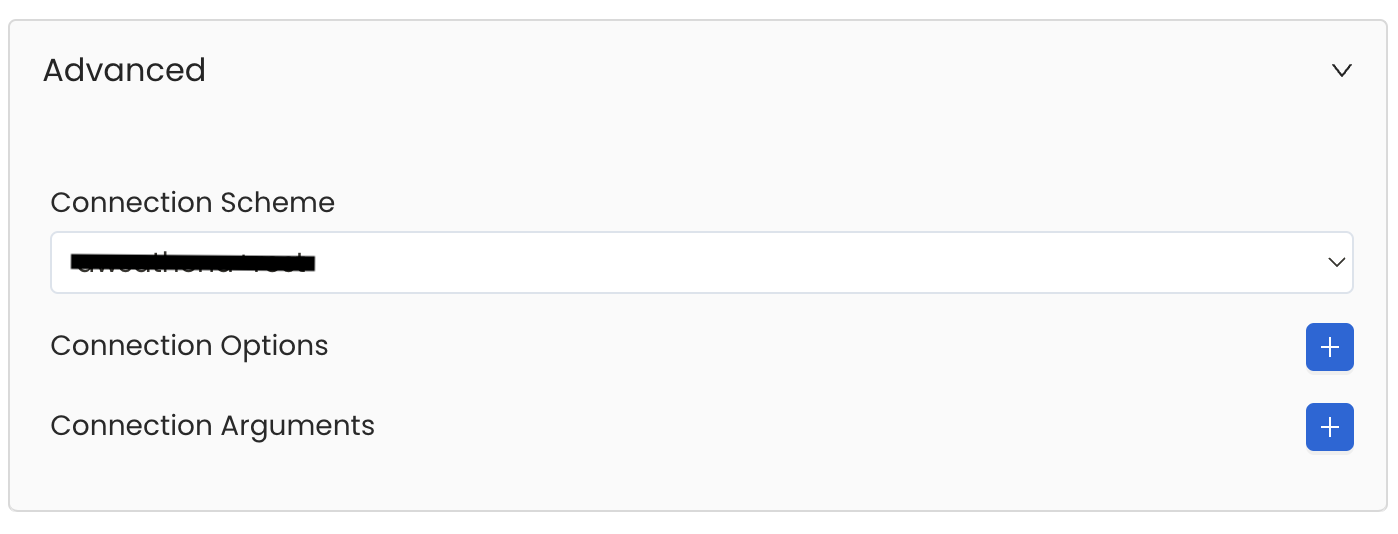
Database Services have an Advanced Configuration section, where you can pass extra arguments to the connector
and, if needed, change the connection Scheme.
This would only be required to handle advanced connectivity scenarios or customizations.
* **Connection Options (Optional)**: Enter the details for any additional connection options that can be sent to database during the connection. These details must be added as Key-Value pairs.
* **Connection Arguments (Optional)**: Enter the details for any additional connection arguments such as security or protocol configs that can be sent during the connection. These details must be added as Key-Value pairs.
You can use Postgres Connection when you have SSO enabled and your Superset is backed by Postgres database.
* **Username**: Specify the User to connect to Postgres. Make sure the user has select privileges on `dashboards`, `tables` & `slices` tables of superset schema.
* **Password**: Password to connect to Postgres.
* **Host and Port**: Enter the fully qualified hostname and port number for your Postgres deployment in the Host and Port field.
* **Database**: Initial Postgres database to connect to. Specify the name of database associated with Superset instance.
* **caCertificate**: Provide the path to ssl ca file.
Database Services have an Advanced Configuration section, where you can pass extra arguments to the connector
and, if needed, change the connection Scheme.
This would only be required to handle advanced connectivity scenarios or customizations.
* **Connection Options (Optional)**: Enter the details for any additional connection options that can be sent to database during the connection. These details must be added as Key-Value pairs.
* **Connection Arguments (Optional)**: Enter the details for any additional connection arguments such as security or protocol configs that can be sent during the connection. These details must be added as Key-Value pairs.
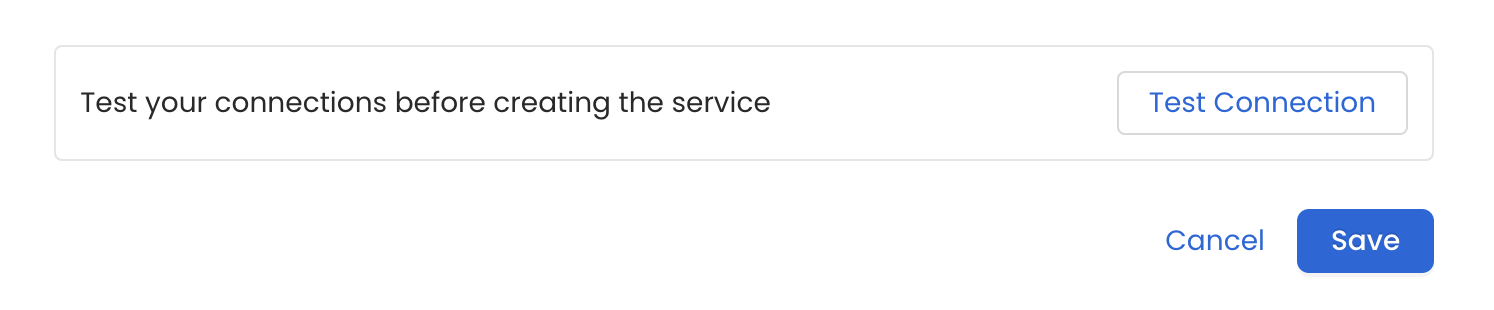
Once the credentials have been added, click on *Test Connection* and *Save* the changes.
After adding and testing the dashboard service, configure the metadata ingestion pipeline. To configure, follow the steps below:
1. Navigate to **Settings** > **Services** > **Dashboards**.
2. On the **Dashboards** services page, click the service you've added.
3. Go to the **Agents** tab, and then click **Add Agent** > **Add Metadata Agent**.
4. Configure the ingestion details. See [Metadata Ingestion Options](#metadata-ingestion-options).
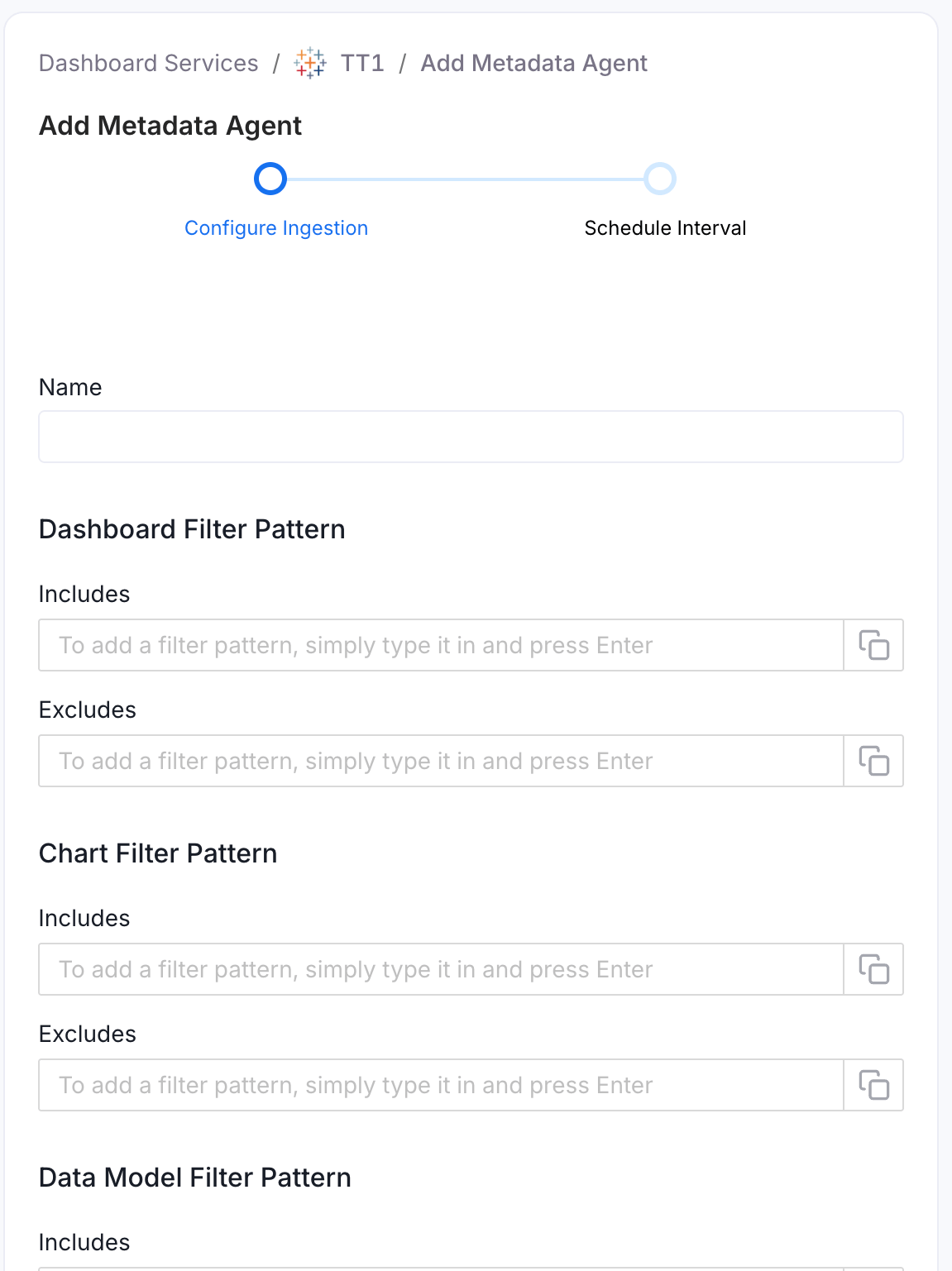
#### Metadata Ingestion Options
* **Name**: This field is the name of the ingestion pipeline. Customize it or use the generated name.
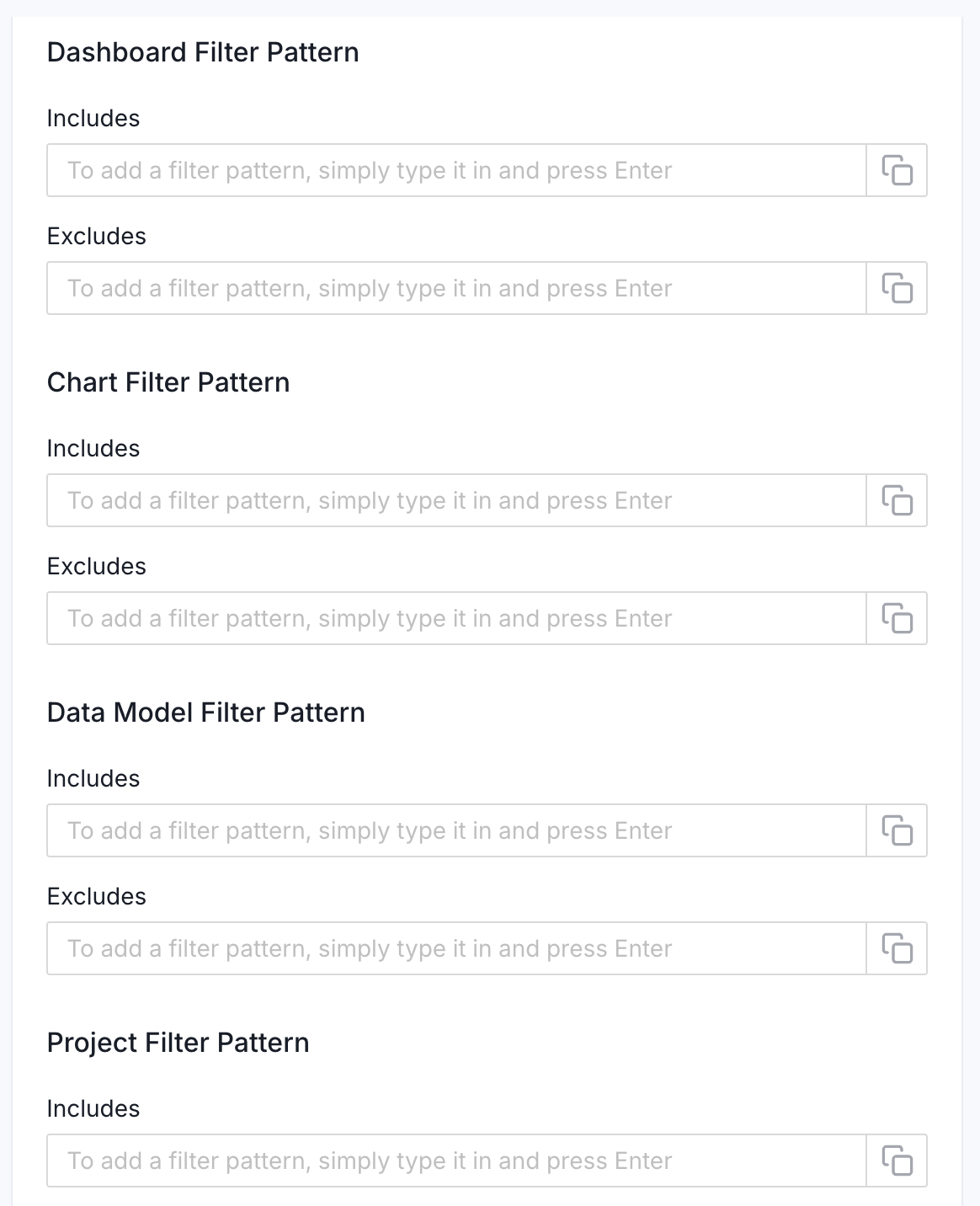
* **Dashboard Filter Pattern (Optional)**: Use it to control whether to include dashboards as part of metadata ingestion.
* **Include**: Explicitly include dashboards by adding comma-separated regular expressions to the 'Include' field. OpenMetadata will include all dashboards with names matching one or more of the supplied regular expressions. All other dashboards will be excluded.
* **Exclude**: Explicitly exclude dashboards by adding comma-separated regular expressions to the 'Exclude' field. OpenMetadata will exclude all dashboards with names matching one or more of the supplied regular expressions. All other dashboards will be included.
* **Chart Filter Pattern (Optional)**: Use it to control whether to include charts as part of metadata ingestion.
* **Include**: Explicitly include charts by adding comma-separated regular expressions to the 'Include' field. OpenMetadata will include all charts with names matching one or more of the supplied regular expressions. All other charts will be excluded.
* **Exclude**: Explicitly exclude charts by adding comma-separated regular expressions to the 'Exclude' field. OpenMetadata will exclude all charts with names matching one or more of the supplied regular expressions. All other charts will be included.
* **Data Model Filter Pattern (Optional)**: Use it to control whether to include data models as part of metadata ingestion.
* **Include**: Explicitly include data models by adding comma-separated regular expressions to the 'Include' field. OpenMetadata will include all data models with names matching one or more of the supplied regular expressions. All other data models will be excluded.
* **Exclude**: Explicitly exclude data models by adding comma-separated regular expressions to the 'Exclude' field. OpenMetadata will exclude all data models with names matching one or more of the supplied regular expressions. All other data models will be included.
* **Project Filter Pattern**: Filter the dashboards, charts, and data sources by projects. Note that all of them support regex as include or exclude. For example, "My project, My proj.\*, .\*Project".
We filter the projects by concatenating the entire project hierarchy using dot notation
(for example, `Project1.NestedProjectA.OtherProject`).
Make sure the regex filter pattern accounts for this fully-qualified format.
* **Enable Debug Log**: Enable this toggle to use debug-level logging.
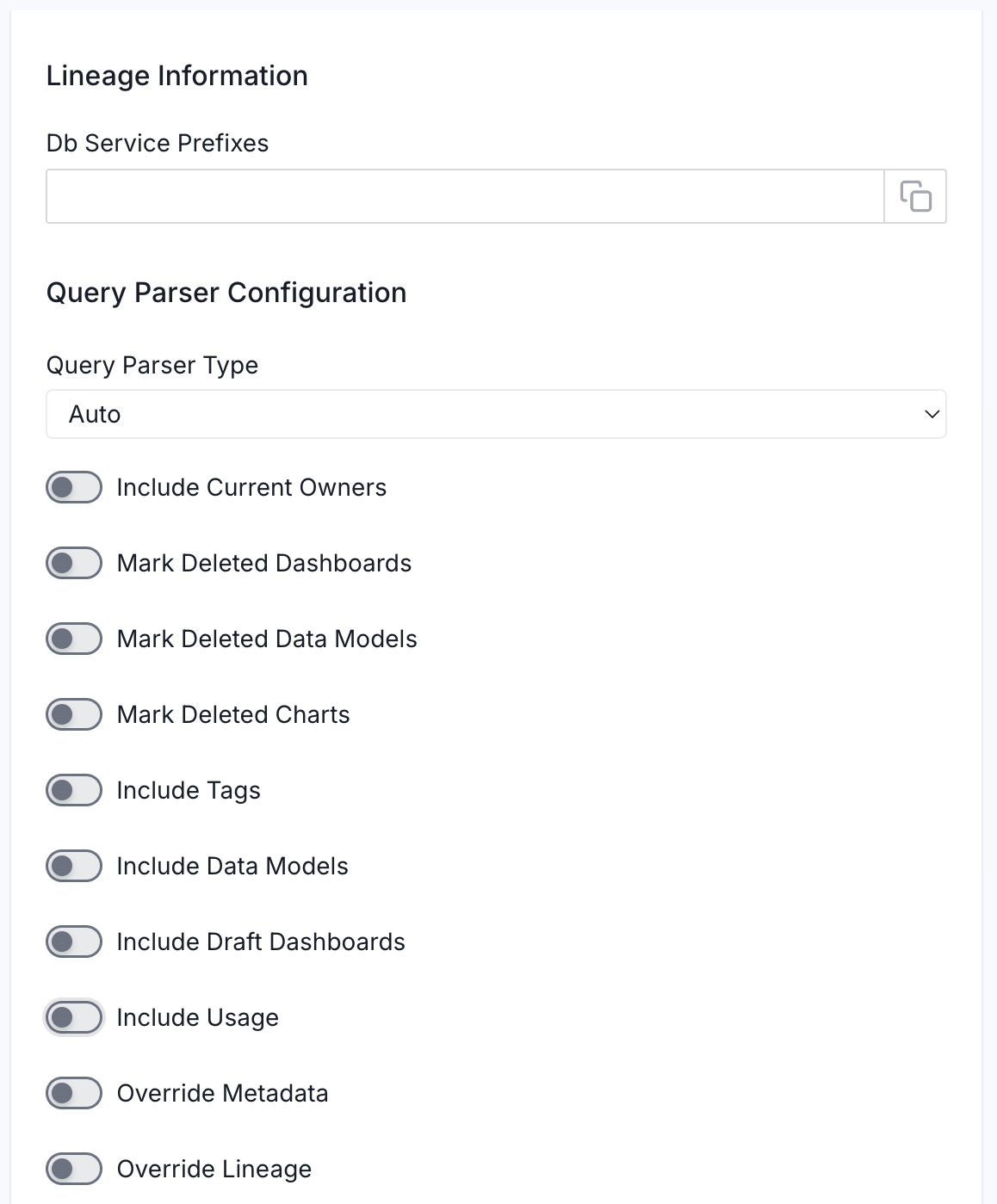
* **Lineage Information (Optional)**: Configure this section to enable lineage between your dashboards and the database tables they are built on. OpenMetadata uses the database service name to match and draw the lineage path from table to dashboard.
* **Db Service Prefixes**: Enter one or more service path prefixes to tell OpenMetadata where to look for the source tables used by your dashboards. Supported formats:
* `DBServiceName`—matches all tables in the service
* `DBServiceName.DatabaseName`—matches tables in a specific database
* `DBServiceName.DatabaseName.SchemaName`—matches tables in a specific schema
* `DBServiceName.DatabaseName.SchemaName.TableName`—matches a specific table
* **Query Parser Configuration**: Controls how OpenMetadata parses SQL queries to extract lineage. Use this to select the SQL parser that best fits your data source's dialect.
* **Query Parser Type**: Choose the SQL parser for lineage extraction:
* **Auto** (default): Automatically tries SqlGlot first, falls back to SqlFluff, then SqlParse. Recommended for best results.
* **SqlGlot**: High-performance parser with good dialect support. Falls back to SqlParse on failure.
* **SqlFluff**: Comprehensive but slower parser with strong dialect support. Falls back to SqlParse on failure.
* **Include Current Owners**: Enable this toggle to control whether to include owners for the ingested entity if the owner email matches a user stored in the Collate server as part of metadata ingestion. If the ingested entity already exists and has an owner, the owner will not be overwritten.
* **Mark Deleted Dashboards**: Optional configuration to soft delete dashboards in OpenMetadata if the source dashboards are deleted. After deleting, all associated entities like lineage and other related data for that dashboard will be deleted.
* **Mark Deleted Data Models**: Optional configuration to soft delete data models in OpenMetadata if the source data models are deleted. After deleting, all associated entities with that data model will be deleted.
* **Mark Deleted Charts**: Optional configuration to soft delete charts in OpenMetadata if the source charts are deleted. After deleting, all associated entities with that chart will be deleted.
* **Include Tags**: Enable this toggle to control whether to include tags in metadata ingestion.
* **Include Data Models**: Enable this toggle to control whether to include data models as part of metadata ingestion.
* **Include Draft Dashboard**: Enable this toggle to include draft dashboards. By default, this is enabled.
* **Include Usage**: Enable this toggle to control whether to include usage data as part of metadata ingestion.
* **Override Metadata**: Enable this toggle to control whether to override the existing metadata in the Collate server with the metadata fetched from the source. If enabled, the metadata fetched from the source will override the existing metadata in OpenMetadata. If disabled, only fields that have no value in OpenMetadata will be updated. This is applicable for fields like description, tags, owner, and displayName.
* **Override Lineage**: Enable this toggle to control whether to override the existing lineage in OpenMetadata with the lineage fetched from the source. If enabled, existing lineage will be replaced. If disabled, new lineage edges will be added without removing existing ones.
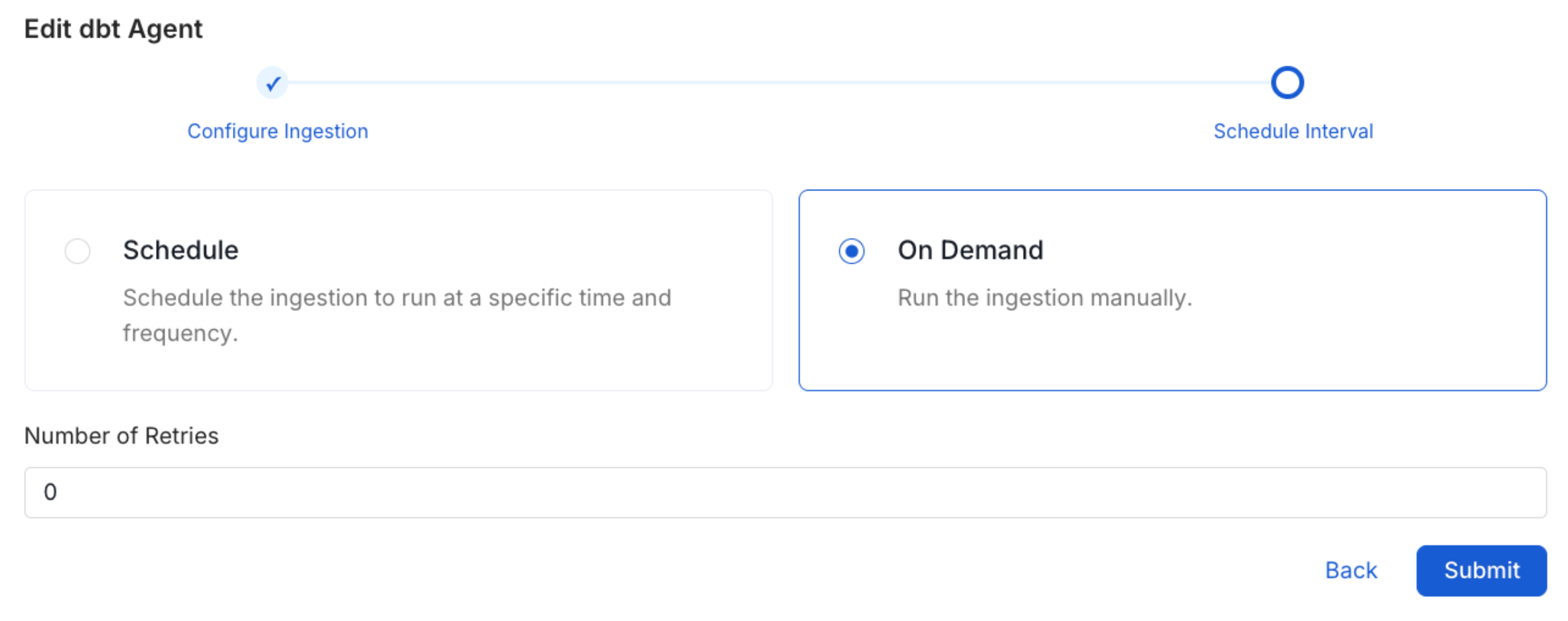
Scheduling can be set up at an hourly, daily, weekly, or manual cadence. The
timezone is in UTC. Select a Start Date to schedule for ingestion. It is
optional to add an End Date.
Review your configuration settings. If they match what you intended,
click Deploy to create the service and schedule metadata ingestion.
If something doesn't look right, click the Back button to return to the
appropriate step and change the settings as needed.
After configuring the workflow, you can click on Deploy to create the
pipeline.
Once the workflow has been successfully deployed, you can view the
Ingestion Pipeline running from the Service Page.
If [AutoPilot](/how-to-guides/admin-guide/applications/autopilot) is enabled, workflows like usage tracking, data lineage, and similar tasks will be handled automatically. Users don’t need to set up or manage them - AutoPilot takes care of everything in the system.
## Securing Superset Connection with SSL in OpenMetadata
1. To establish secure connections between OpenMetadata and Superset, navigate to the `Advanced Config` section. We need to update the `Certificate Path` and ensure that the certificates are accessible from the Airflow Server.
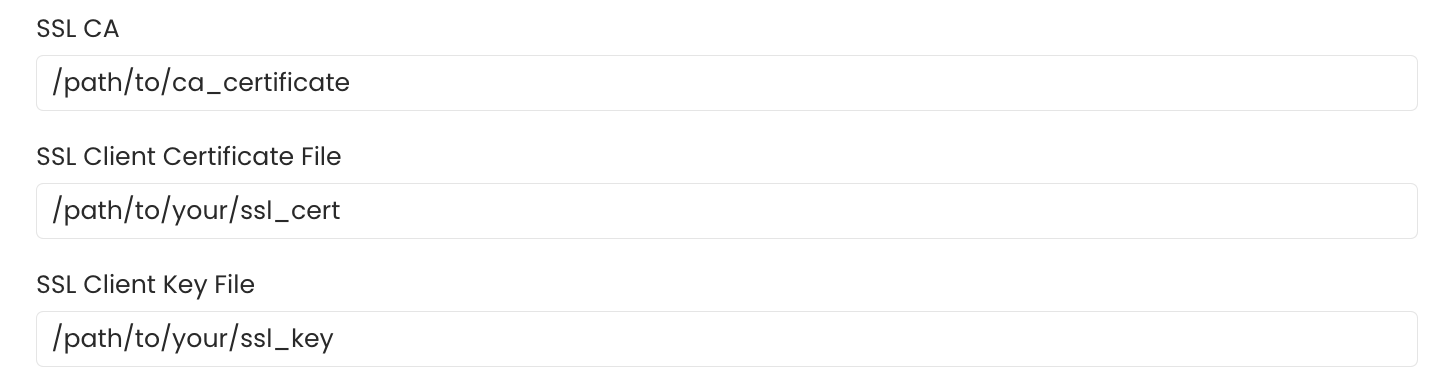
2. To establish secure connections between OpenMetadata and Superset's MySQL database, you need to configure SSL certificates appropriately. If you only require SSL validation, specify the `caCertificate` to use the CA certificate for validating the server's certificate. For mutual authentication, where both client and server need to authenticate each other, you must provide all three parameters: `ssl_key` for the client’s private key, `ssl_cert` for the client’s SSL certificate, and `ssl_ca` for the CA certificate to validate the server’s certificate.
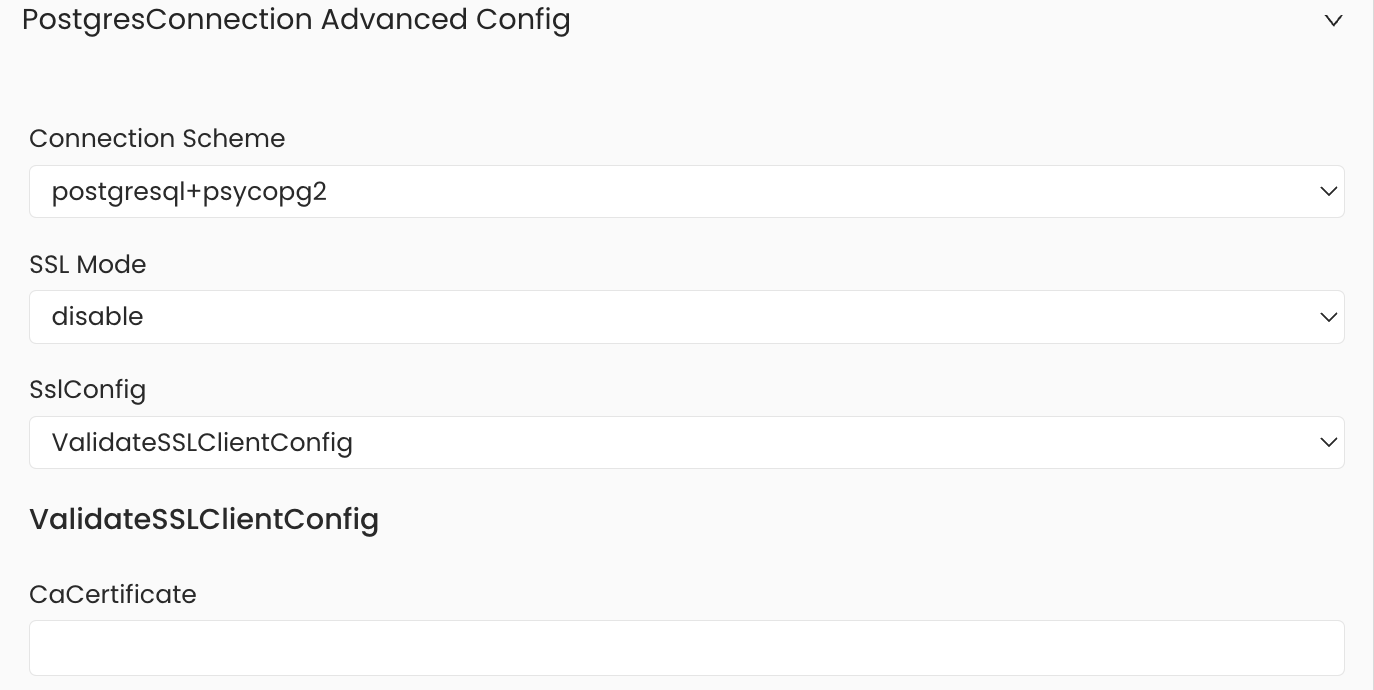
3. To establish secure connections between OpenMetadata and Superset's PostgreSQL database, you can configure SSL using different SSL modes provided by PostgreSQL, each offering varying levels of security.Under `PostgresConnection Advanced Config`, specify the SSL mode appropriate for your connection, such as `prefer`, `verify-ca`, `allow`, and others. After selecting the SSL mode, provide the CA certificate used for SSL validation (`caCertificate`). Note that PostgreSQL requires only the CA certificate for SSL validation.
## Lineage
Lineage in Collate shows you which database tables power each dashboard. When lineage is set up, you can trace any dashboard back to the exact source tables in your database.
There is no separate lineage agent or lineage pipeline—lineage is collected as part of the same metadata ingestion workflow. Configuring the **Db Service Prefixes** field (covered below) is optional but recommended — it restricts table matching to specific database services. If left blank, Collate attempts to match source tables across all ingested database services.
### How to Set Up Lineage
1. Go to **Settings** > **Services** > **Dashboards**.
2. Click the dashboard service you've added.
3. Go to the **Agents** tab, then select **Add Agent** > **Add Metadata Agent**.
If a metadata agent already exists, select the three-dot context menu (⋮) next to it and select **Edit**.
4. In the **Configure Ingestion** step, scroll down to the **Lineage Information** section.
5. Optionally enter one or more database service names in the **Db Service Prefixes** field to restrict table matching to specific services. If left blank, Collate searches across all ingested database services.
The **Db Service Prefixes** field helps Collate locate the source tables and draw the lineage path from table to dashboard.
**Examples of valid entries:**
| What you enter | What it matches |
| ------------------------------- | --------------------------------------------------------- |
| `SnowflakeProd` | All tables in the Snowflake service named `SnowflakeProd` |
| `SnowflakeProd.sales_db` | Tables in the `sales_db` database within `SnowflakeProd` |
| `SnowflakeProd.sales_db.public` | Tables in the `public` schema within `sales_db` |
If your dashboards pull data from multiple database services, add each service as a separate entry in the **Db Service Prefixes** field.
## Troubleshooting
Learn more about how to troubleshoot common Superset connector issues and resolve configuration or ingestion errors.
 #### Metadata Ingestion Options
* **Name**: This field is the name of the ingestion pipeline. Customize it or use the generated name.
* **Dashboard Filter Pattern (Optional)**: Use it to control whether to include dashboards as part of metadata ingestion.
* **Include**: Explicitly include dashboards by adding comma-separated regular expressions to the 'Include' field. OpenMetadata will include all dashboards with names matching one or more of the supplied regular expressions. All other dashboards will be excluded.
* **Exclude**: Explicitly exclude dashboards by adding comma-separated regular expressions to the 'Exclude' field. OpenMetadata will exclude all dashboards with names matching one or more of the supplied regular expressions. All other dashboards will be included.
* **Chart Filter Pattern (Optional)**: Use it to control whether to include charts as part of metadata ingestion.
* **Include**: Explicitly include charts by adding comma-separated regular expressions to the 'Include' field. OpenMetadata will include all charts with names matching one or more of the supplied regular expressions. All other charts will be excluded.
* **Exclude**: Explicitly exclude charts by adding comma-separated regular expressions to the 'Exclude' field. OpenMetadata will exclude all charts with names matching one or more of the supplied regular expressions. All other charts will be included.
* **Data Model Filter Pattern (Optional)**: Use it to control whether to include data models as part of metadata ingestion.
* **Include**: Explicitly include data models by adding comma-separated regular expressions to the 'Include' field. OpenMetadata will include all data models with names matching one or more of the supplied regular expressions. All other data models will be excluded.
* **Exclude**: Explicitly exclude data models by adding comma-separated regular expressions to the 'Exclude' field. OpenMetadata will exclude all data models with names matching one or more of the supplied regular expressions. All other data models will be included.
* **Project Filter Pattern**: Filter the dashboards, charts, and data sources by projects. Note that all of them support regex as include or exclude. For example, "My project, My proj.\*, .\*Project".
#### Metadata Ingestion Options
* **Name**: This field is the name of the ingestion pipeline. Customize it or use the generated name.
* **Dashboard Filter Pattern (Optional)**: Use it to control whether to include dashboards as part of metadata ingestion.
* **Include**: Explicitly include dashboards by adding comma-separated regular expressions to the 'Include' field. OpenMetadata will include all dashboards with names matching one or more of the supplied regular expressions. All other dashboards will be excluded.
* **Exclude**: Explicitly exclude dashboards by adding comma-separated regular expressions to the 'Exclude' field. OpenMetadata will exclude all dashboards with names matching one or more of the supplied regular expressions. All other dashboards will be included.
* **Chart Filter Pattern (Optional)**: Use it to control whether to include charts as part of metadata ingestion.
* **Include**: Explicitly include charts by adding comma-separated regular expressions to the 'Include' field. OpenMetadata will include all charts with names matching one or more of the supplied regular expressions. All other charts will be excluded.
* **Exclude**: Explicitly exclude charts by adding comma-separated regular expressions to the 'Exclude' field. OpenMetadata will exclude all charts with names matching one or more of the supplied regular expressions. All other charts will be included.
* **Data Model Filter Pattern (Optional)**: Use it to control whether to include data models as part of metadata ingestion.
* **Include**: Explicitly include data models by adding comma-separated regular expressions to the 'Include' field. OpenMetadata will include all data models with names matching one or more of the supplied regular expressions. All other data models will be excluded.
* **Exclude**: Explicitly exclude data models by adding comma-separated regular expressions to the 'Exclude' field. OpenMetadata will exclude all data models with names matching one or more of the supplied regular expressions. All other data models will be included.
* **Project Filter Pattern**: Filter the dashboards, charts, and data sources by projects. Note that all of them support regex as include or exclude. For example, "My project, My proj.\*, .\*Project".
 * **Lineage Information (Optional)**: Configure this section to enable lineage between your dashboards and the database tables they are built on. OpenMetadata uses the database service name to match and draw the lineage path from table to dashboard.
* **Db Service Prefixes**: Enter one or more service path prefixes to tell OpenMetadata where to look for the source tables used by your dashboards. Supported formats:
* `DBServiceName`—matches all tables in the service
* `DBServiceName.DatabaseName`—matches tables in a specific database
* `DBServiceName.DatabaseName.SchemaName`—matches tables in a specific schema
* `DBServiceName.DatabaseName.SchemaName.TableName`—matches a specific table
* **Query Parser Configuration**: Controls how OpenMetadata parses SQL queries to extract lineage. Use this to select the SQL parser that best fits your data source's dialect.
* **Query Parser Type**: Choose the SQL parser for lineage extraction:
* **Auto** (default): Automatically tries SqlGlot first, falls back to SqlFluff, then SqlParse. Recommended for best results.
* **SqlGlot**: High-performance parser with good dialect support. Falls back to SqlParse on failure.
* **SqlFluff**: Comprehensive but slower parser with strong dialect support. Falls back to SqlParse on failure.
* **Include Current Owners**: Enable this toggle to control whether to include owners for the ingested entity if the owner email matches a user stored in the Collate server as part of metadata ingestion. If the ingested entity already exists and has an owner, the owner will not be overwritten.
* **Mark Deleted Dashboards**: Optional configuration to soft delete dashboards in OpenMetadata if the source dashboards are deleted. After deleting, all associated entities like lineage and other related data for that dashboard will be deleted.
* **Mark Deleted Data Models**: Optional configuration to soft delete data models in OpenMetadata if the source data models are deleted. After deleting, all associated entities with that data model will be deleted.
* **Mark Deleted Charts**: Optional configuration to soft delete charts in OpenMetadata if the source charts are deleted. After deleting, all associated entities with that chart will be deleted.
* **Include Tags**: Enable this toggle to control whether to include tags in metadata ingestion.
* **Include Data Models**: Enable this toggle to control whether to include data models as part of metadata ingestion.
* **Include Draft Dashboard**: Enable this toggle to include draft dashboards. By default, this is enabled.
* **Include Usage**: Enable this toggle to control whether to include usage data as part of metadata ingestion.
* **Override Metadata**: Enable this toggle to control whether to override the existing metadata in the Collate server with the metadata fetched from the source. If enabled, the metadata fetched from the source will override the existing metadata in OpenMetadata. If disabled, only fields that have no value in OpenMetadata will be updated. This is applicable for fields like description, tags, owner, and displayName.
* **Override Lineage**: Enable this toggle to control whether to override the existing lineage in OpenMetadata with the lineage fetched from the source. If enabled, existing lineage will be replaced. If disabled, new lineage edges will be added without removing existing ones.
* **Lineage Information (Optional)**: Configure this section to enable lineage between your dashboards and the database tables they are built on. OpenMetadata uses the database service name to match and draw the lineage path from table to dashboard.
* **Db Service Prefixes**: Enter one or more service path prefixes to tell OpenMetadata where to look for the source tables used by your dashboards. Supported formats:
* `DBServiceName`—matches all tables in the service
* `DBServiceName.DatabaseName`—matches tables in a specific database
* `DBServiceName.DatabaseName.SchemaName`—matches tables in a specific schema
* `DBServiceName.DatabaseName.SchemaName.TableName`—matches a specific table
* **Query Parser Configuration**: Controls how OpenMetadata parses SQL queries to extract lineage. Use this to select the SQL parser that best fits your data source's dialect.
* **Query Parser Type**: Choose the SQL parser for lineage extraction:
* **Auto** (default): Automatically tries SqlGlot first, falls back to SqlFluff, then SqlParse. Recommended for best results.
* **SqlGlot**: High-performance parser with good dialect support. Falls back to SqlParse on failure.
* **SqlFluff**: Comprehensive but slower parser with strong dialect support. Falls back to SqlParse on failure.
* **Include Current Owners**: Enable this toggle to control whether to include owners for the ingested entity if the owner email matches a user stored in the Collate server as part of metadata ingestion. If the ingested entity already exists and has an owner, the owner will not be overwritten.
* **Mark Deleted Dashboards**: Optional configuration to soft delete dashboards in OpenMetadata if the source dashboards are deleted. After deleting, all associated entities like lineage and other related data for that dashboard will be deleted.
* **Mark Deleted Data Models**: Optional configuration to soft delete data models in OpenMetadata if the source data models are deleted. After deleting, all associated entities with that data model will be deleted.
* **Mark Deleted Charts**: Optional configuration to soft delete charts in OpenMetadata if the source charts are deleted. After deleting, all associated entities with that chart will be deleted.
* **Include Tags**: Enable this toggle to control whether to include tags in metadata ingestion.
* **Include Data Models**: Enable this toggle to control whether to include data models as part of metadata ingestion.
* **Include Draft Dashboard**: Enable this toggle to include draft dashboards. By default, this is enabled.
* **Include Usage**: Enable this toggle to control whether to include usage data as part of metadata ingestion.
* **Override Metadata**: Enable this toggle to control whether to override the existing metadata in the Collate server with the metadata fetched from the source. If enabled, the metadata fetched from the source will override the existing metadata in OpenMetadata. If disabled, only fields that have no value in OpenMetadata will be updated. This is applicable for fields like description, tags, owner, and displayName.
* **Override Lineage**: Enable this toggle to control whether to override the existing lineage in OpenMetadata with the lineage fetched from the source. If enabled, existing lineage will be replaced. If disabled, new lineage edges will be added without removing existing ones.
 2. To establish secure connections between OpenMetadata and Superset's MySQL database, you need to configure SSL certificates appropriately. If you only require SSL validation, specify the `caCertificate` to use the CA certificate for validating the server's certificate. For mutual authentication, where both client and server need to authenticate each other, you must provide all three parameters: `ssl_key` for the client’s private key, `ssl_cert` for the client’s SSL certificate, and `ssl_ca` for the CA certificate to validate the server’s certificate.
 3. To establish secure connections between OpenMetadata and Superset's PostgreSQL database, you can configure SSL using different SSL modes provided by PostgreSQL, each offering varying levels of security.Under `PostgresConnection Advanced Config`, specify the SSL mode appropriate for your connection, such as `prefer`, `verify-ca`, `allow`, and others. After selecting the SSL mode, provide the CA certificate used for SSL validation (`caCertificate`). Note that PostgreSQL requires only the CA certificate for SSL validation.
 ## Lineage
Lineage in Collate shows you which database tables power each dashboard. When lineage is set up, you can trace any dashboard back to the exact source tables in your database.
There is no separate lineage agent or lineage pipeline—lineage is collected as part of the same metadata ingestion workflow. Configuring the **Db Service Prefixes** field (covered below) is optional but recommended — it restricts table matching to specific database services. If left blank, Collate attempts to match source tables across all ingested database services.
## Lineage
Lineage in Collate shows you which database tables power each dashboard. When lineage is set up, you can trace any dashboard back to the exact source tables in your database.
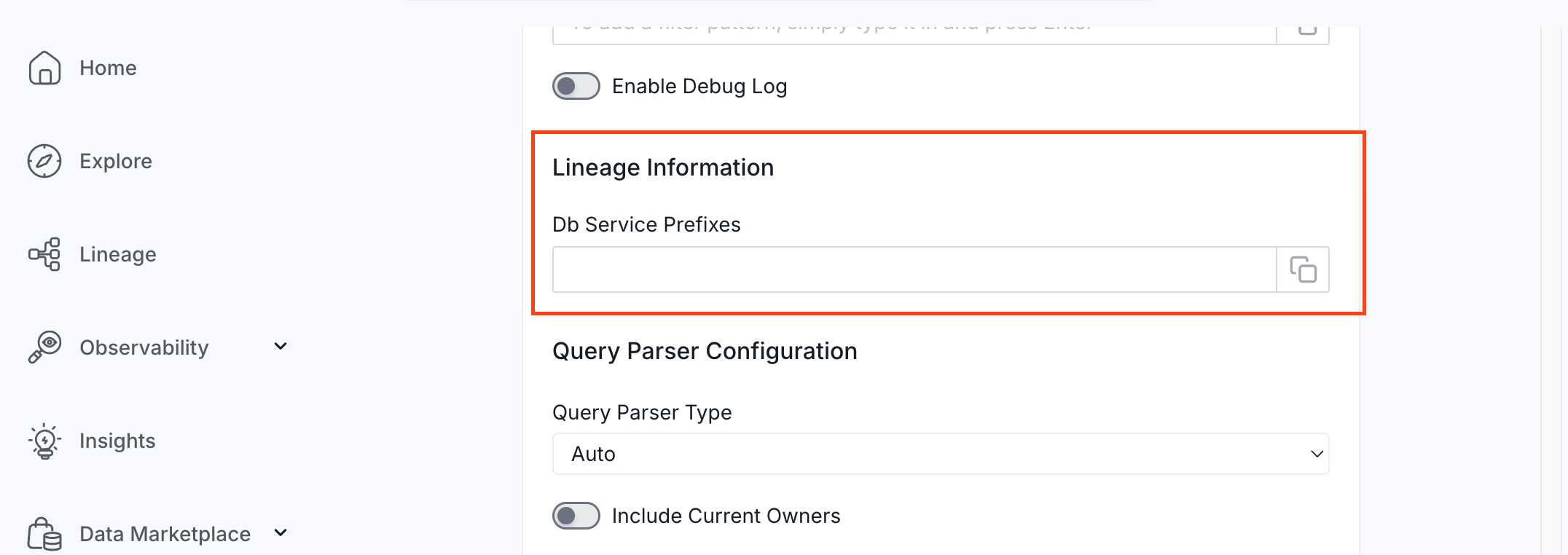
There is no separate lineage agent or lineage pipeline—lineage is collected as part of the same metadata ingestion workflow. Configuring the **Db Service Prefixes** field (covered below) is optional but recommended — it restricts table matching to specific database services. If left blank, Collate attempts to match source tables across all ingested database services.
 ### How to Set Up Lineage
1. Go to **Settings** > **Services** > **Dashboards**.
2. Click the dashboard service you've added.
3. Go to the **Agents** tab, then select **Add Agent** > **Add Metadata Agent**.
If a metadata agent already exists, select the three-dot context menu (⋮) next to it and select **Edit**.
4. In the **Configure Ingestion** step, scroll down to the **Lineage Information** section.
5. Optionally enter one or more database service names in the **Db Service Prefixes** field to restrict table matching to specific services. If left blank, Collate searches across all ingested database services.
The **Db Service Prefixes** field helps Collate locate the source tables and draw the lineage path from table to dashboard.
**Examples of valid entries:**
| What you enter | What it matches |
| ------------------------------- | --------------------------------------------------------- |
| `SnowflakeProd` | All tables in the Snowflake service named `SnowflakeProd` |
| `SnowflakeProd.sales_db` | Tables in the `sales_db` database within `SnowflakeProd` |
| `SnowflakeProd.sales_db.public` | Tables in the `public` schema within `sales_db` |
### How to Set Up Lineage
1. Go to **Settings** > **Services** > **Dashboards**.
2. Click the dashboard service you've added.
3. Go to the **Agents** tab, then select **Add Agent** > **Add Metadata Agent**.
If a metadata agent already exists, select the three-dot context menu (⋮) next to it and select **Edit**.
4. In the **Configure Ingestion** step, scroll down to the **Lineage Information** section.
5. Optionally enter one or more database service names in the **Db Service Prefixes** field to restrict table matching to specific services. If left blank, Collate searches across all ingested database services.
The **Db Service Prefixes** field helps Collate locate the source tables and draw the lineage path from table to dashboard.
**Examples of valid entries:**
| What you enter | What it matches |
| ------------------------------- | --------------------------------------------------------- |
| `SnowflakeProd` | All tables in the Snowflake service named `SnowflakeProd` |
| `SnowflakeProd.sales_db` | Tables in the `sales_db` database within `SnowflakeProd` |
| `SnowflakeProd.sales_db.public` | Tables in the `public` schema within `sales_db` |