> ## Documentation Index
> Fetch the complete documentation index at: https://docs.getcollate.io/llms.txt
> Use this file to discover all available pages before exploring further.
# Collate Browser Extension
> Install the browser extension to explore metadata and documentation directly while navigating your data tools.
# Collate Browser Extension
The Collate Browser Extension lets you view metadata for any data asset directly in your browser, without leaving the tool you're working in.
## Installing the Extension
1. Open the Chrome Web Store and search for **Collate**, or go directly to the [Collate extension page](https://chromewebstore.google.com/detail/collate/ndjnpiadedlmgddlpeklbnobebkpkdgb).
2. Click **Add to Chrome**.
3. Pin the extension to your Chrome toolbar for quick access.
## Getting Started
1. Click the **Collate** icon in your Chrome toolbar.
2. Enter the base URL of your Collate instance.
3. Sign in — your **Activity Feeds** from the My Data page will load automatically.
## What You Can See
While working in any third-party tool integrated with Collate, click the extension to instantly view metadata for the asset you're on:
* **Ownership** — Who owns the data asset
* **Description** — What the asset is and how it's used
* **Tags** — Classification labels applied to the asset
* **Glossary Terms** — Business definitions linked to the asset
* **Schema** — Column names, types, and structure
* **Lineage** — Upstream and downstream data dependencies
* **Custom Properties** — Any additional metadata your organization has defined
## Single Sign-On (SSO) Configuration
If your Collate instance uses Single Sign-On (SSO), the extension's redirect URI must be registered as a **trusted redirect URI**. Collate validates login redirects against an exact-match allowlist, so any URI that isn't registered is rejected with a `400 Bad Request` and the extension can't complete sign-in.
* The redirect URI follows this pattern, where `` is the ID of your installed extension:
`https://.chromiumapp.org/auth0`
* For the Collate Chrome Extension published on the Chrome Web Store, this is:
`https://ndjnpiadedlmgddlpeklbnobebkpkdgb.chromiumapp.org/auth0`
Register the redirect URI in one of two ways.
### Option 1: Configure in the UI
1. Click the **Profile** icon and navigate to **Settings** > **SSO**.
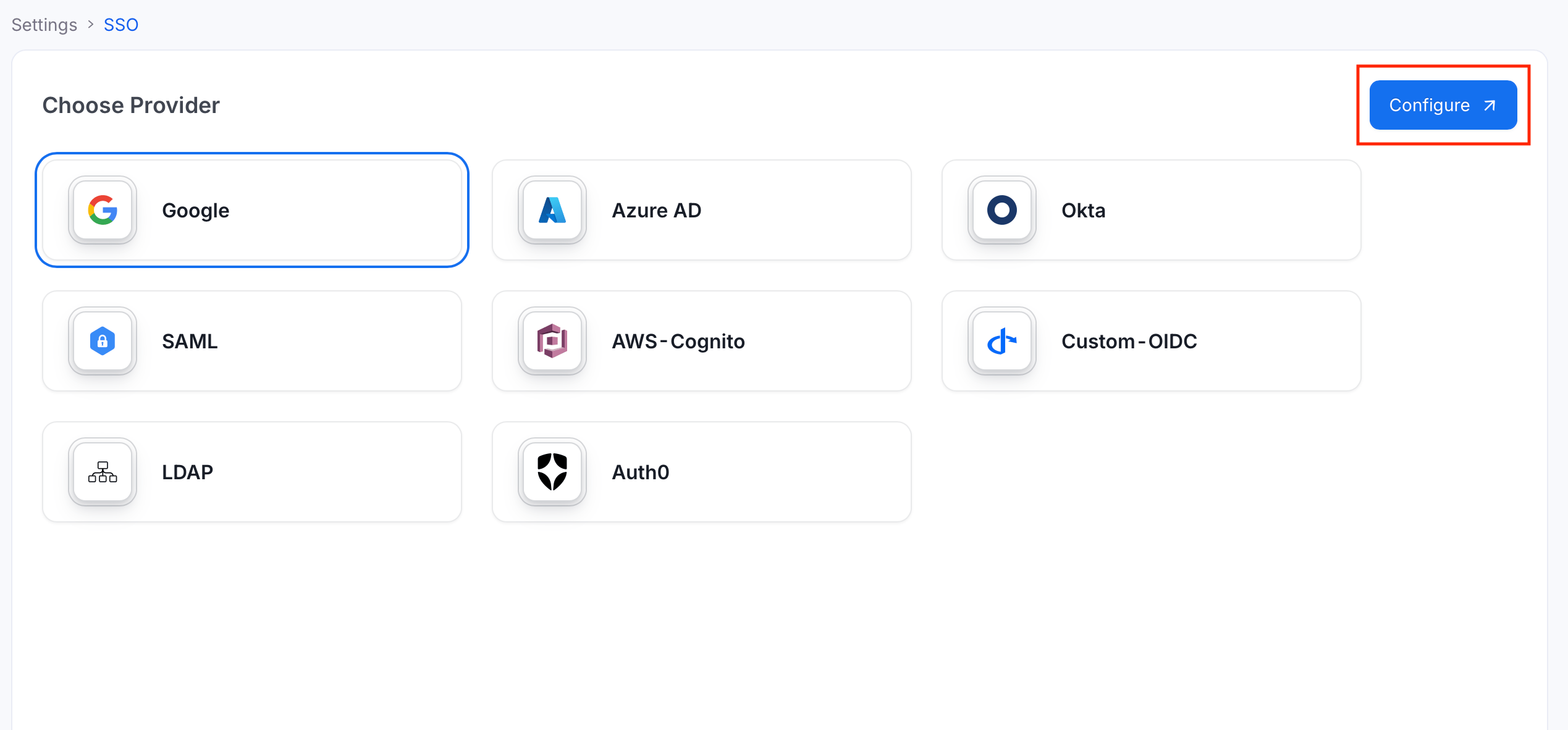
2. Select your provider and click **Configure**.
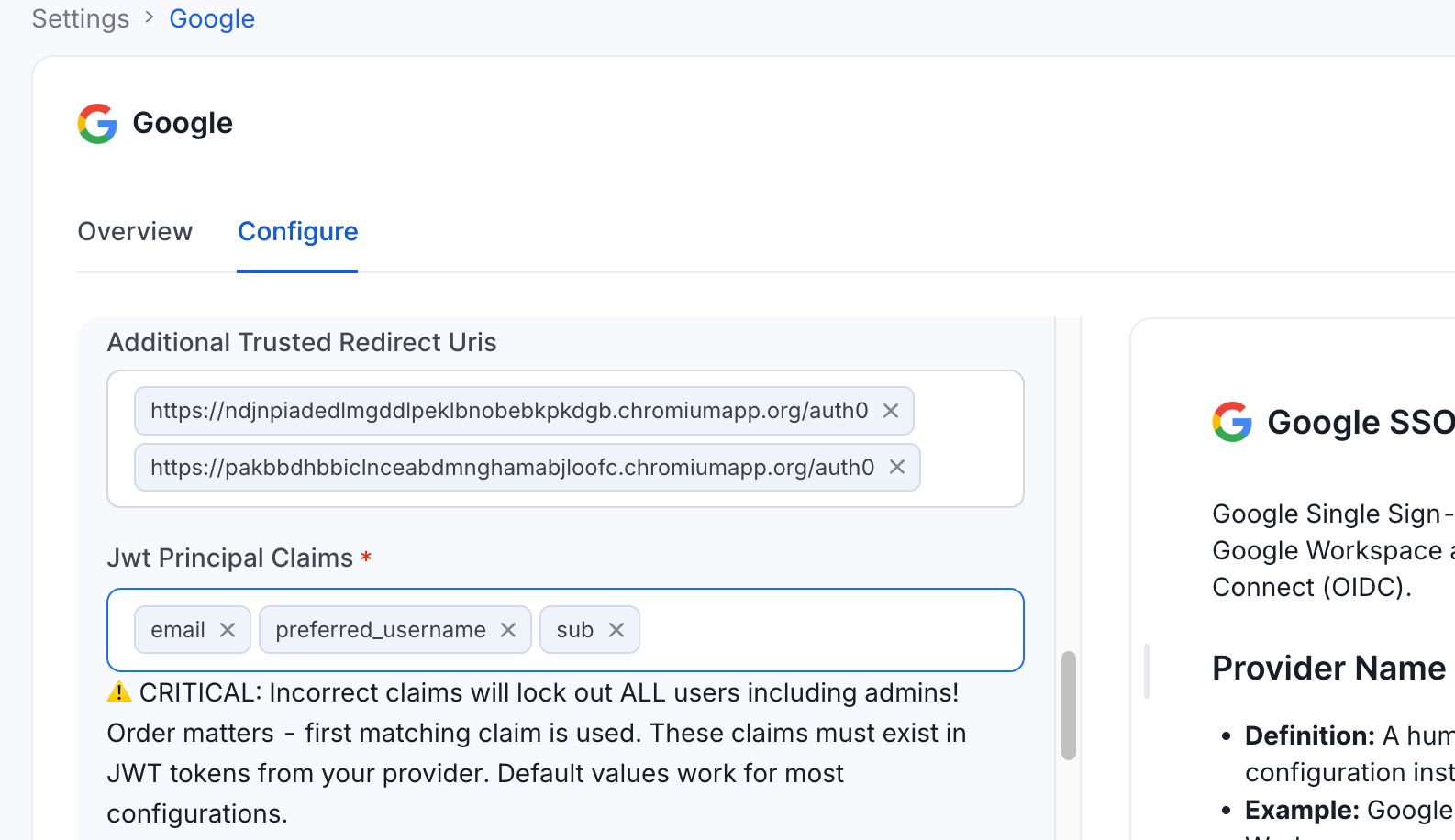
3. In the **Additional Trusted Redirect Uris** field, add the extension redirect URI.
### Option 2: Configure via Environment Variable
Set the `AUTHENTICATION_ADDITIONAL_TRUSTED_REDIRECT_URIS` environment variable to a JSON array of redirect URIs:
```bash theme={null}
export AUTHENTICATION_ADDITIONAL_TRUSTED_REDIRECT_URIS='["https://.chromiumapp.org/auth0"]'
```
This maps to `authenticationConfiguration.additionalTrustedRedirectUris` in the server configuration. It applies to both OpenID Connect (OIDC) and SAML login flows, and no database migration is required.
For more information about SSO and redirect configuration, see [SSO Configuration](/ai-2-0/how-to-guides/sso).
Matching is **exact**—scheme, host, port, path, and query must all match. Wildcard hosts (for example, `*.chromiumapp.org`) are not supported by design, because that would let any browser extension receive a Collate token. The list defaults to empty (`[]`), so existing deployments are unchanged until you opt in.
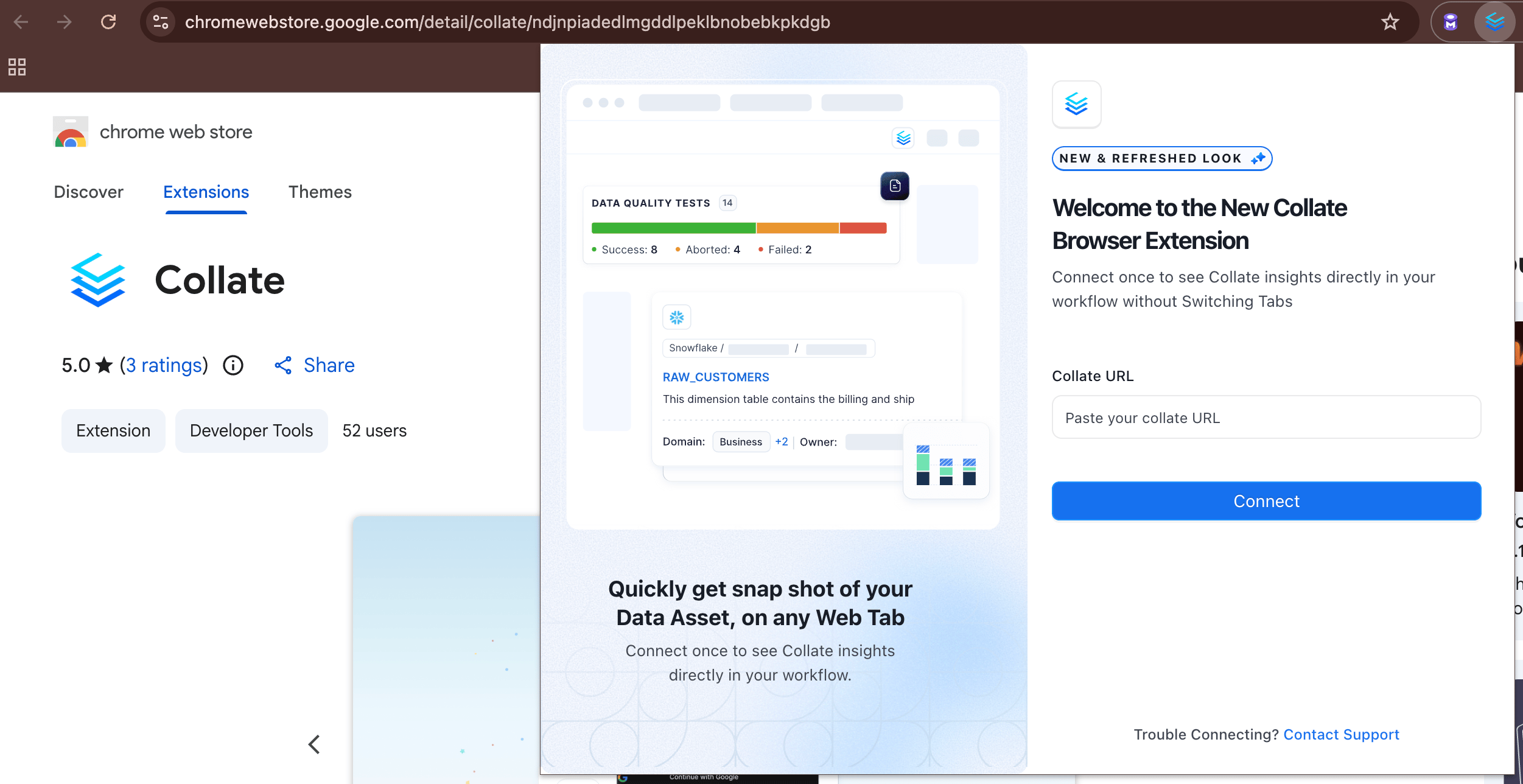 2. Enter the base URL of your Collate instance.
3. Sign in — your **Activity Feeds** from the My Data page will load automatically.
## What You Can See
While working in any third-party tool integrated with Collate, click the extension to instantly view metadata for the asset you're on:
* **Ownership** — Who owns the data asset
* **Description** — What the asset is and how it's used
* **Tags** — Classification labels applied to the asset
* **Glossary Terms** — Business definitions linked to the asset
* **Schema** — Column names, types, and structure
* **Lineage** — Upstream and downstream data dependencies
* **Custom Properties** — Any additional metadata your organization has defined
## Single Sign-On (SSO) Configuration
If your Collate instance uses Single Sign-On (SSO), the extension's redirect URI must be registered as a **trusted redirect URI**. Collate validates login redirects against an exact-match allowlist, so any URI that isn't registered is rejected with a `400 Bad Request` and the extension can't complete sign-in.
* The redirect URI follows this pattern, where `
2. Enter the base URL of your Collate instance.
3. Sign in — your **Activity Feeds** from the My Data page will load automatically.
## What You Can See
While working in any third-party tool integrated with Collate, click the extension to instantly view metadata for the asset you're on:
* **Ownership** — Who owns the data asset
* **Description** — What the asset is and how it's used
* **Tags** — Classification labels applied to the asset
* **Glossary Terms** — Business definitions linked to the asset
* **Schema** — Column names, types, and structure
* **Lineage** — Upstream and downstream data dependencies
* **Custom Properties** — Any additional metadata your organization has defined
## Single Sign-On (SSO) Configuration
If your Collate instance uses Single Sign-On (SSO), the extension's redirect URI must be registered as a **trusted redirect URI**. Collate validates login redirects against an exact-match allowlist, so any URI that isn't registered is rejected with a `400 Bad Request` and the extension can't complete sign-in.
* The redirect URI follows this pattern, where `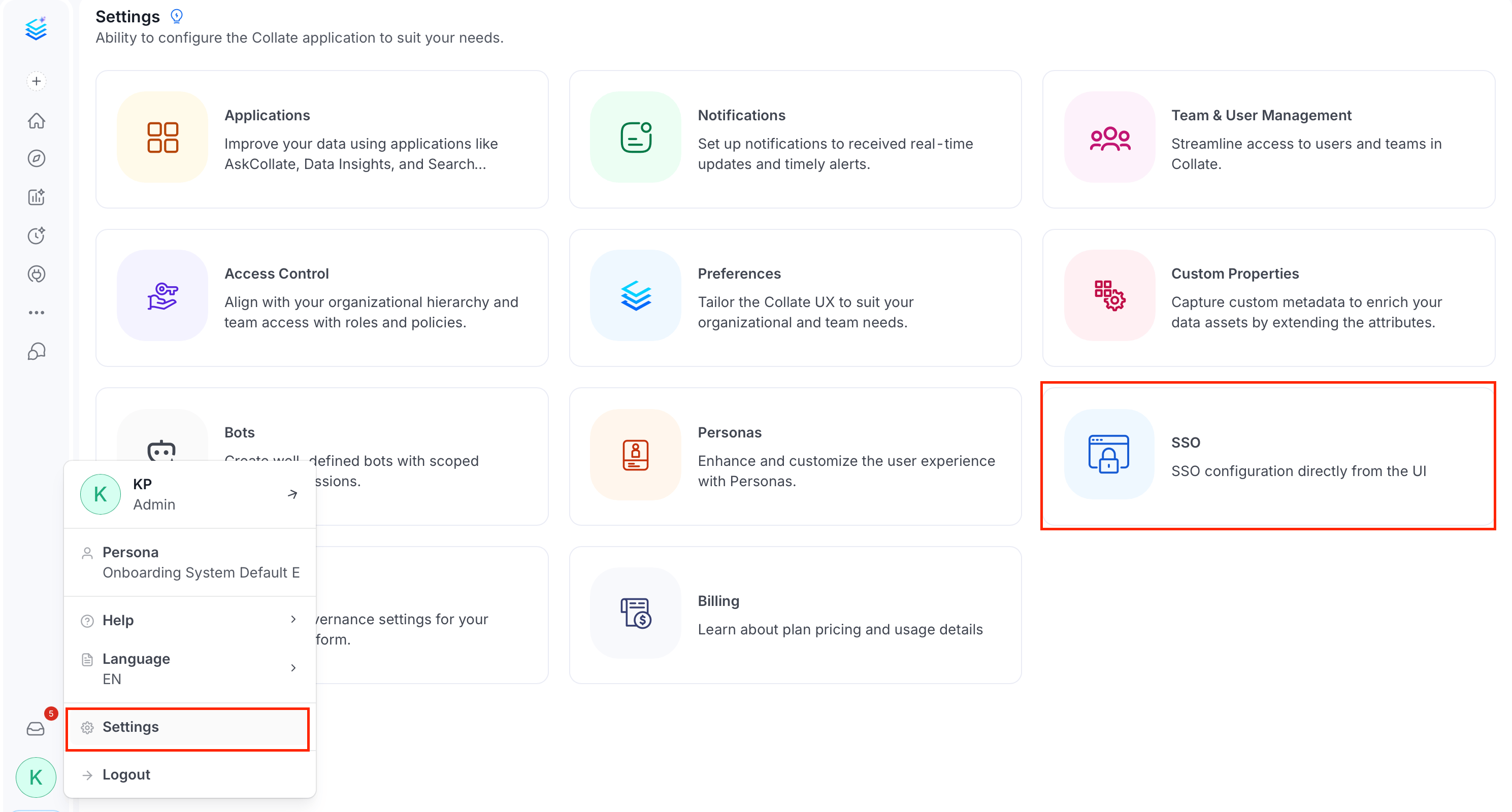 2. Select your provider and click **Configure**.
 3. In the **Additional Trusted Redirect Uris** field, add the extension redirect URI.
 ### Option 2: Configure via Environment Variable
Set the `AUTHENTICATION_ADDITIONAL_TRUSTED_REDIRECT_URIS` environment variable to a JSON array of redirect URIs:
```bash theme={null}
export AUTHENTICATION_ADDITIONAL_TRUSTED_REDIRECT_URIS='["https://
### Option 2: Configure via Environment Variable
Set the `AUTHENTICATION_ADDITIONAL_TRUSTED_REDIRECT_URIS` environment variable to a JSON array of redirect URIs:
```bash theme={null}
export AUTHENTICATION_ADDITIONAL_TRUSTED_REDIRECT_URIS='["https://